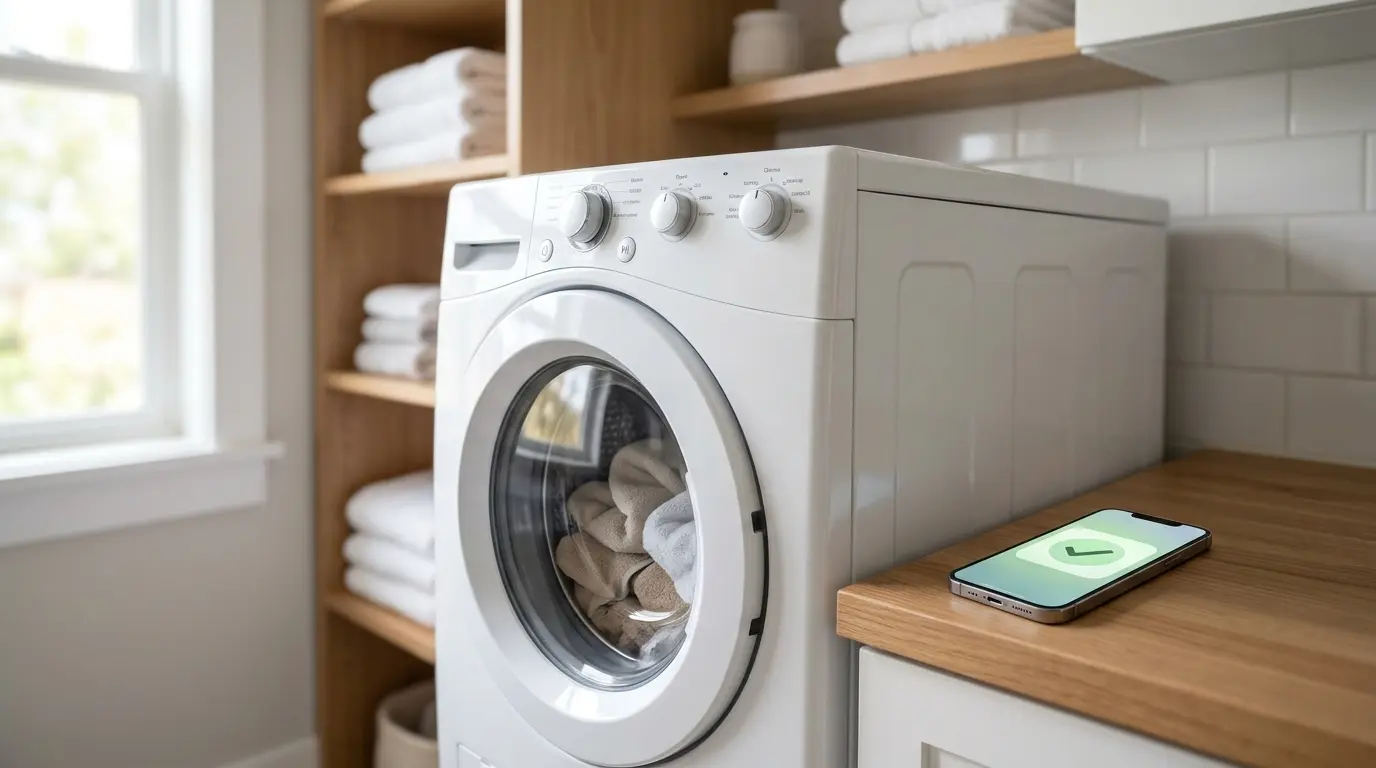
A GE SmartHQ washer can send push alerts to your phone, such as a finished cycle or a low detergent tank. Alerts arrive only when they are enabled on the washer’s Notifications page in the app and when the phone allows push notifications for SmartHQ. Which alerts exist depends on the washer model.
A smart GE washer can report on itself without anyone standing beside it. Once the washer is linked to the SmartHQ app and the home Wi-Fi network, the app can send short messages to a phone when something needs attention: a load that is done, a tank that is running low, or a part that needs cleaning.
Those messages depend on two separate switches. One sits inside the SmartHQ app, in the washer’s own notification settings. The other sits in the phone’s system settings, where Apple or Google decide whether an app may push alerts to the screen at all. If either one is off, nothing arrives, even though the washer itself is working normally.
This guide lists the alerts a GE SmartHQ washer can send, shows where both switches are, explains how to act on each message, and covers how to silence them.
Table of Contents
Which alerts a GE washer can send
Five alerts are tied to GE smart washers. Availability varies by model, so no single washer is guaranteed to send all five.
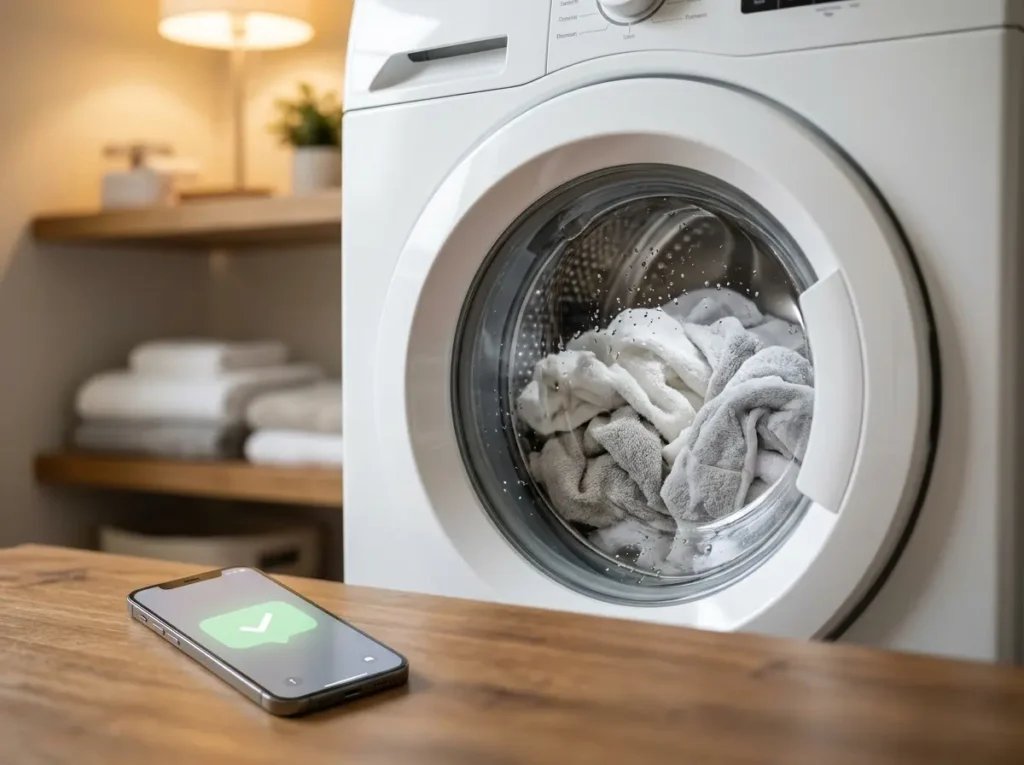
- Cycle finished. A message that the wash has ended.
- Cycle finished, door not opened. A reminder that the cycle is over and the door has stayed shut, so the load is still inside.
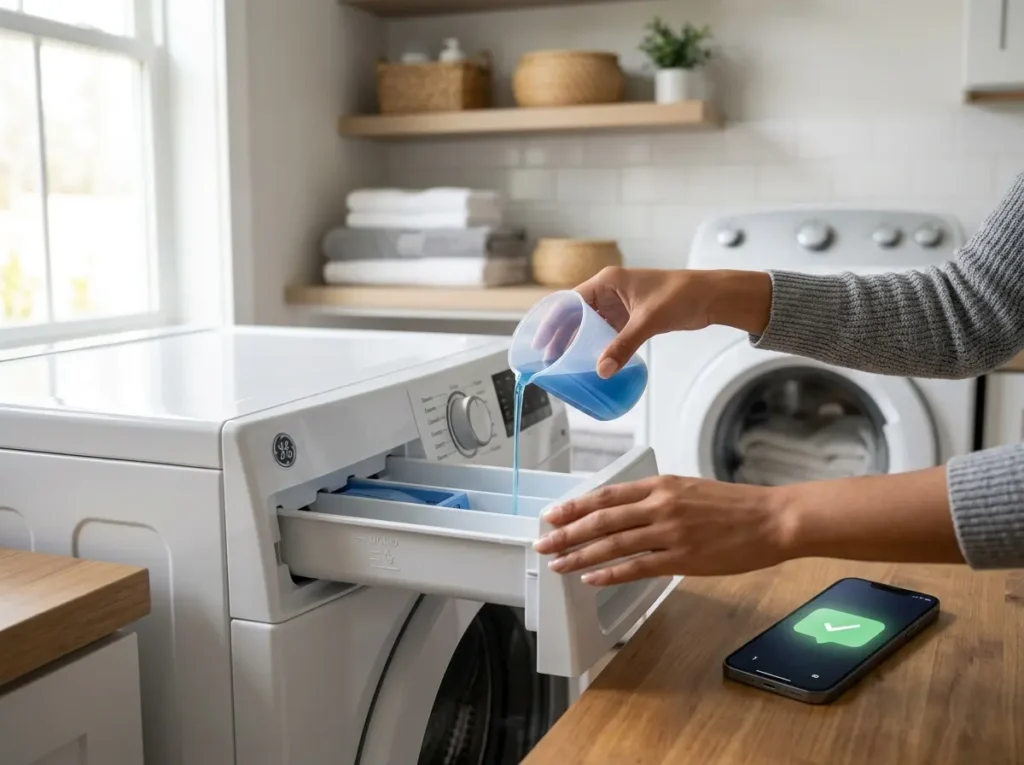
- Low detergent in the SmartDispense tank. Sent only by washers that have a SmartDispense tank. A washer without one does not have this alert.
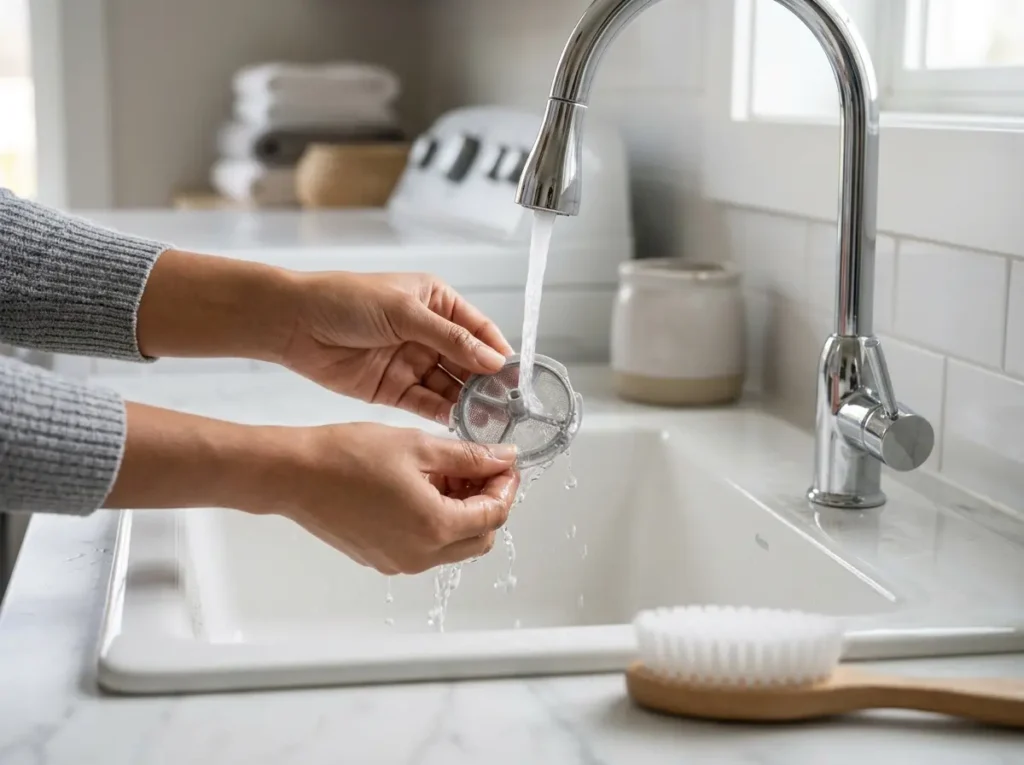
- Washer filter cleaning reminder. A prompt to clean the filter. Not every model includes it.
- Service alerts. A notice that the machine requires attention, so a problem can be dealt with early.
If an alert on this list never shows up, the washer may simply not support it. The owner’s manual for the exact model is the place to confirm which alerts apply.


How to turn alerts on in the app and on the phone
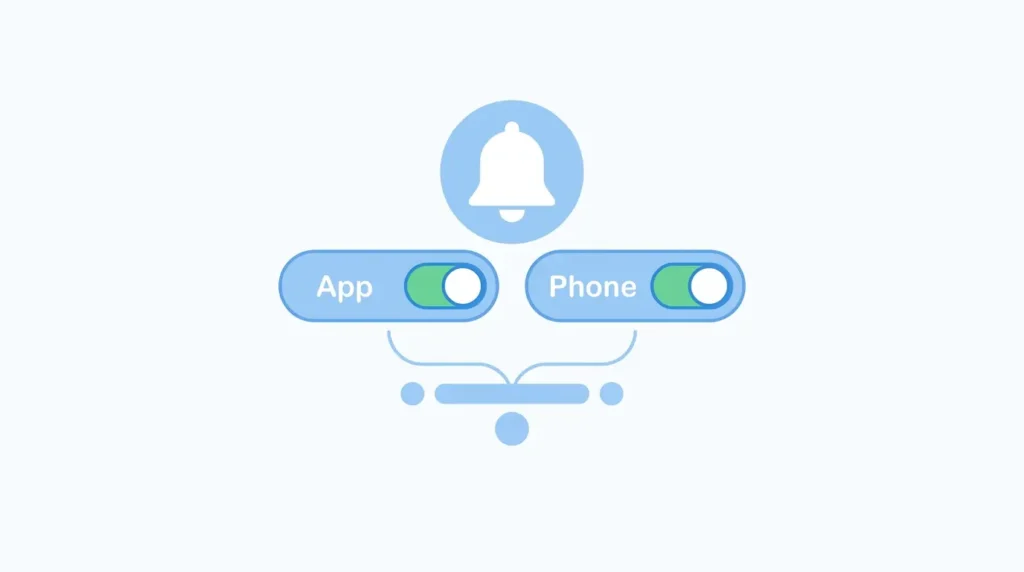
Two settings must both be on.
In the app. Open SmartHQ and go to the settings for the washer. Find the Notifications page there and check that notifications are enabled.
On the phone. The first time SmartHQ runs, when SmartHQ is first installed, the phone may ask whether it can send push notifications. whether it may send push notifications. Declining that prompt blocks every alert, however the app is set up. To check, open the phone’s own settings and go to its Notifications page. Find SmartHQ in the list and confirm that Allow Notifications is on.
The screens differ from one washer to another and between versions of the app, so button names and positions may not match this description exactly. If the Notifications page is hard to find, check the owner’s manual for the specific model, or look through the washer’s settings area for anything labeled with notifications or alerts.
How to read and manage alerts
Each alert arrives as a standard push message on the phone. Tapping it opens SmartHQ, where the washer’s current status and time remaining can be checked.
What each message calls for:
- Cycle finished: the load is ready to be moved to the dryer or hung up.
- Cycle finished with the door still closed: the load has been sitting, so open the door and take it out.
- SmartDispense low: refill the tank before the next load.
- Filter reminder: clean the washer filter, following the cleaning steps in the owner’s manual.
- Service alert: open the app to check the washer, and if the message keeps returning, ask GE for help.


How to turn alerts off
There are two levels of control.
To silence alerts from the app, turn them off on the washer’s Notifications page in SmartHQ, where the page offers that option.
To silence everything, use the phone’s Notifications page instead. Find SmartHQ and switch off Allow Notifications. This blocks every SmartHQ message on that phone, including useful ones such as service alerts, so it suits someone who only wants to open the app now and then to check on a load.
Turning alerts off changes only what reaches the phone. It does not remove the washer from the app, and the app can still be opened to view status. To bring alerts back, reverse the change in the same place: re-enable them in the app, on the phone, or in both.
Model and app-version differences
GE sells many smart washers, and they do not all behave the same way. Each model supports its own set of features, while others rely on an add-on module, and each model supports its own set of features. A SmartDispense alert only makes sense on a washer that has the tank. A filter reminder appears only on certain models. If an alert from the list above is missing from the Notifications page, the model may simply not offer it.
The SmartHQ app also changes over time. Menu names, icons, and the position of settings can shift after an update, and a description written for one version may not match the next. The same goes for the wording of the alerts themselves.
For these reasons, treat the steps in this article as a general guide rather than an exact map. Confirm the screens and the list of supported alerts in the manual for the specific washer model before assuming that something is broken.
When to call GE support
If both notification checks are on and alerts still do not arrive, contact GE. For problems with the SmartHQ app, the connection, or notifications, call the Connected Home Support line at 1-800-220-6899. For questions about the washer itself, the GE Appliances Answer Center is at 1-800-626-2005 (Monday to Friday, 8 a.m. to 7 p.m. ET). To book a repair, GE Appliance Service is at 1-800-432-2737 (Monday to Friday, 8 a.m. to 8 p.m. ET), and service can also be scheduled online.
Have the washer’s model and serial number ready before you call. Phone numbers and hours can change, so confirm them on GE’s support page or inside the app.
FAQs: GE SmartHQ Washer
Why am I not getting notifications from my GE washer? Start with the two settings that control delivery. First, open the washer’s Notifications page in SmartHQ and confirm that notifications are enabled Second, check the phone’s own Notifications page and confirm that Allow Notifications is on for SmartHQ, because a declined permission prompt blocks everything. If both are correct and alerts still fail to appear, contact GE Connected Home Support.
What alerts does a GE washer send? A GE smart washer can send a cycle-finished message, a reminder that the cycle ended but the door was never opened, a low-detergent notice for the SmartDispense tank, a filter cleaning reminder, and service alerts when the machine requires attention. No washer necessarily offers all five. The SmartDispense and filter alerts in particular depend on the model, so the owner’s manual shows what a specific washer supports.
How do I turn notifications on or off? Open the washer’s settings in the SmartHQ app, go to the Notifications page, and turn notifications on or off. To block all alerts at once, turn off Allow Notifications for SmartHQ in the phone’s settings. Turning an alert back on uses the same switch.
Do I need both the app setting and the phone permission? Yes. The Notifications page in the app decides which alerts the washer is set to send, and the phone permission decides whether the phone may show them. Either one can stop alerts on its own. An enabled app switch does nothing if the phone permission was declined, and an allowed permission does nothing if the alert itself is disabled in the app.
Does every washer send every alert? No. Availability varies by model. SmartDispense low-detergent alerts apply only to washers with a SmartDispense tank, and the filter cleaning reminder is not on every model. A missing alert on that page often means the model does not offer it. The manual for the exact model is the reliable guide.
When should I call GE support? Call GE Connected Home Support at 1-800-220-6899 once both checks have been confirmed and alerts still do not arrive. Those checks are the in-app Notifications page and the phone’s Allow Notifications setting. Keep the model number handy, along with a note of which alerts are enabled.
Bottom line
GE washer alerts come down to two switches and one caveat. The washer’s Notifications page in the SmartHQ app controls which alerts are enabled, and the phone’s own settings control whether SmartHQ may push anything through at all. Checking both, in that order, covers the first things to verify before anyone picks up the phone.
The alerts a GE washer can send form a short list: cycle finished, cycle finished with the door unopened, low detergent in a SmartDispense tank, a filter cleaning reminder, and service alerts. Not every washer sends all of them
For anything left unresolved, GE Connected Home Support at 1-800-220-6899 is the next step.