
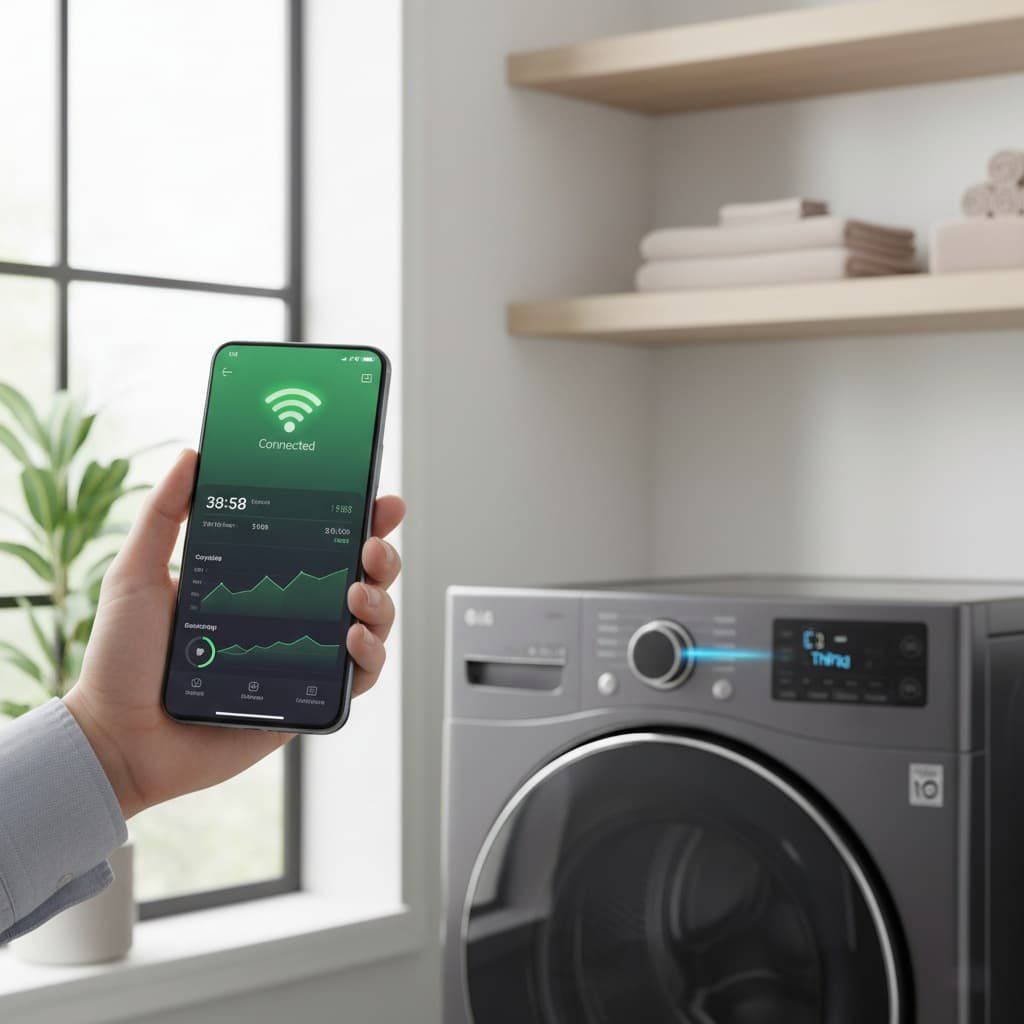
If your LG washer won’t connect to Wi-Fi, start with the Wi-Fi band, because LG’s US support page says the ThinQ app supports 2.4 GHz Wi-Fi. Quick answer: connect your phone to your 2.4 GHz Wi-Fi network, turn off mobile data, use only one phone to register the washer, and add the washer again in the ThinQ app. The steps below explain each one.
| As an Amazon Associate, I earn from qualifying purchases. TechElectronicLive.com may earn a small commission if you buy through links on this page, at no extra cost to you. |
Table of Contents
1. Why LG Washing Machines Use Wi-Fi
Wi-Fi allows your LG washing machine to connect with the LG ThinQ app. You can:
- Start or stop cycles remotely.
- Get notifications when a load finishes.
- Download specialized washing cycles.
- Run Smart Diagnosis on models that support it.
👉 [LG washing machine reviews, comparing smart models]

- High-Efficiency Front-Load Washer – ENERGY STAR certified design delivers powerful cleaning performance while helping re…
- Large 5.0 Cu. Ft. Capacity – Easily handles bulky items like comforters and large laundry loads, reducing the number of …
- Depth With Door Open (Maximum 55 inches) – Requires up to 55 in. of clearance with the door fully open (90°) for conveni…
2. Common issue: why LG washer won’t connect to Wi-Fi
Most Wi-Fi problems fall into predictable categories:
- Wrong Wi-Fi band: LG’s US support page says the ThinQ app supports 2.4 GHz Wi-Fi.
- Distance from the router: LG’s US support page says to keep the router and the washer within 10 meters (about 33 feet) of each other.
- App glitches: An outdated ThinQ app can sometimes cause errors.
- More than one phone: LG’s US support page says only one smartphone should be connected to Wi-Fi while you register the washer.
- Router settings: Some router settings, such as a hidden network name, can sometimes get in the way of setup.
3. Before You Start: Setup Checklist
Before you start, LG’s US support pages list two things to confirm:
- Turn off mobile data on your phone, then connect the phone to your Wi-Fi network.
- Use only one smartphone to register the washer. LG’s US troubleshooting page says another phone nearby may have started the connection. If so, turn the washer off and try again.
4. Step-by-Step Wi-Fi Troubleshooting
Solving the 2.4 GHz Trap (How to Force 2.4 GHz)
Many routers are dual-band, and some show one network name for both 2.4 GHz and 5 GHz. LG’s US support page says the ThinQ app supports 2.4 GHz Wi-Fi, so if your phone is joined to a 5 GHz network during setup, pairing can fail.
The fix: During setup, connect your phone to your router’s 2.4 GHz network. If your router shows one network name for both bands, open your router settings and give the 2.4 GHz band its own name. LG’s US support page says to pick a network with 2.4 G or 2.4 GHz next to its name. Some routers call the combined setting band steering or Smart Connect, and turning it off during setup may help. If you turned off Smart Connect or band steering for setup, you can turn it back on after the washer is paired.

- AX3000 WiFi 6 Router for Home Internet: It supports AX3000 WiFi 6, with a maximum wireless link rate up to 2402Mbps on 5…
- Easy 5-Step Setup — No App Required Just follow these 5 steps: Step 1: Connect the power adapter to the DC-IN jack on th…
- Everyday Multi-Room WiFi Coverage: Five external antennas and Beamforming help support WiFi for spaces like living rooms…

Update the LG ThinQ app.
- Go to the Google Play Store or Apple App Store.
- Install the latest update.
- On Android, clearing the app’s cache can sometimes help if errors persist.
Reset the washer’s Wi-Fi settings.
The button or button combination that clears Wi-Fi settings depends on your washer’s control panel. Look in the ThinQ or Smart Functions section of your owner’s manual for the exact buttons and how long to hold them. Then add the washer again in the ThinQ app. If setup still fails, LG’s US support page says to unplug the washer for 30 seconds and restart your phone, then plug the washer back in and retry setup in the ThinQ app.
👉 [LG washing machine control panel types explained]
Verify Router Settings
- Confirm the Wi-Fi password is typed correctly. LG’s US support page lists this as a first check.
- Leave automatic IP assignment (DHCP) on, which is the default on most home routers.
- A hidden network name can make setup harder, so keep the network name visible during setup.
- WPA2 or a mixed WPA2/WPA3 mode is often the easiest option for smart appliances. Some appliances may not connect to a network that is set to WPA3 only.
- Avoid special characters in the Wi-Fi name and password if pairing keeps failing.
Reinstall the LG ThinQ app (if needed).
- Delete and reinstall the app.
- Re-add your washer during setup.
5. Quick Reference: Symptom, Cause, Fix
| Symptom | Likely Cause | Quick Fix |
| The washer never appears in the app during setup. | Phone connected to 5 GHz, not 2.4 GHz | Connect your phone to the 2.4 GHz network during setup (Section 4) |
| Connects, then drops randomly | Weak signal or router interference | Keep the router and washer within 10 meters of each other, or try a Wi-Fi extender. |
| The app shows outdated cycle options or crashes. | App out of date | Update the ThinQ app, then check the software version in the app (Section 7). |
| The Wi-Fi icon stays off no matter what you try. | Wi-Fi does not turn on after a reset and a 2.4 GHz retry | Contact LG support (Section 9) |
| Setup fails specifically on the first connection attempt. | Mobile data left on during setup | Disable mobile data during setup. |
6. LG ThinQ App Error Codes (Quick Reference)
The ThinQ app may show an error code during setup. Code numbers and wording can differ by app version and model, so check LG’s support page for the exact meaning. Setup errors can have different causes, such as a wrong Wi-Fi password, a phone on the wrong band, or a timeout.
👉 [LG washing machine error code guide, full breakdown]

7. When to Update Your Washer’s Firmware
LG’s US ThinQ page says software updates are sent wirelessly to select LG smart appliances, and available features vary by model.
Steps:
- Open the ThinQ app and select your washer.
- Then open Settings to view the installed software version (shown on LG’s US page for top-load washers). Menus may differ on other models.

8. Practical Tips for Stronger Wi-Fi Performance
- Keep the washer and the router within 10 meters (about 33 feet) of each other, as LG’s US support page advises.
- Microwaves and cordless phones can sometimes interfere with Wi-Fi, so try to keep the router away from them.
- Use a Wi-Fi extender if your laundry room is far from the router.
In a small apartment, an extender is often unnecessary, so check the 2.4 GHz band first (Section 4). In larger homes, especially two-story houses, an extender can help if the washer is far from the router.


9. Repair vs. DIY Fix
Most Wi-Fi connection issues resolve with the steps above. Try the steps above first before contacting support.
A useful question before troubleshooting further: has this washer ever connected successfully before, or has it never connected at all? A unit that connected before and then dropped is worth checking against recent changes to your router or Wi-Fi password. A unit that’s never connected points more toward setup timing (the 2.4GHz trap) or, in some cases, a problem that LG support needs to look at.
Before calling for service, check:
- Router functionality.
- App updates.
- Washer’s Wi-Fi icon status.
If the Wi-Fi icon stays off after a reset and a retry on a 2.4 GHz network, contact LG support using the contact details in the support menu on LG’s US website.
👉 [7 Common LG Washing Machine Problems and What They Mean]
10. FAQs: LG washing machine wifi not connecting
Q: Why won’t my LG washer connect when my phone is on a 5 GHz network?
LG’s US support page says the ThinQ app supports 2.4 GHz Wi-Fi, so pairing can fail when your phone is on the 5 GHz band. Connect your phone to the 2.4 GHz network during setup (see Section 4).
Q: I updated the app, but the washer still won’t connect. What’s next?
Move on to a full Wi-Fi settings reset on the washer itself (Section 4), not just the app. An outdated app is one possible cause, but a half-completed earlier setup attempt on the washer can also get in the way, and the app alone won’t fix that.
Q: My washer was connected for months and suddenly dropped. Did something break?
Not necessarily. Anything that changed on your network, such as a router replacement, a changed Wi-Fi password or an ISP-side outage, can disconnect a previously working washer. Start there before assuming a hardware issue.
Q: Can I use my washer’s Wi-Fi features without the ThinQ app installed?
No. LG’s US ThinQ page lists remote start, stop and monitoring, cycle downloads and notifications as ThinQ app features, so those features need the app.
The Bottom Line
Troubleshooting Pro-Tip: If your washer refuses to connect during initial setup, disable Mobile Data on your smartphone. LG’s US support page says to turn off mobile data on your phone before connecting to Wi-Fi.
Using a 2.4 GHz network, turning off mobile data and keeping only one phone connected during setup are the first things to check for LG washer Wi-Fi problems. If you’ve worked through every step here and the washer still won’t connect, that’s the point to contact LG support.
Still stuck after trying these steps? Note your model number and exactly what the app or display shows, and contact LG support.