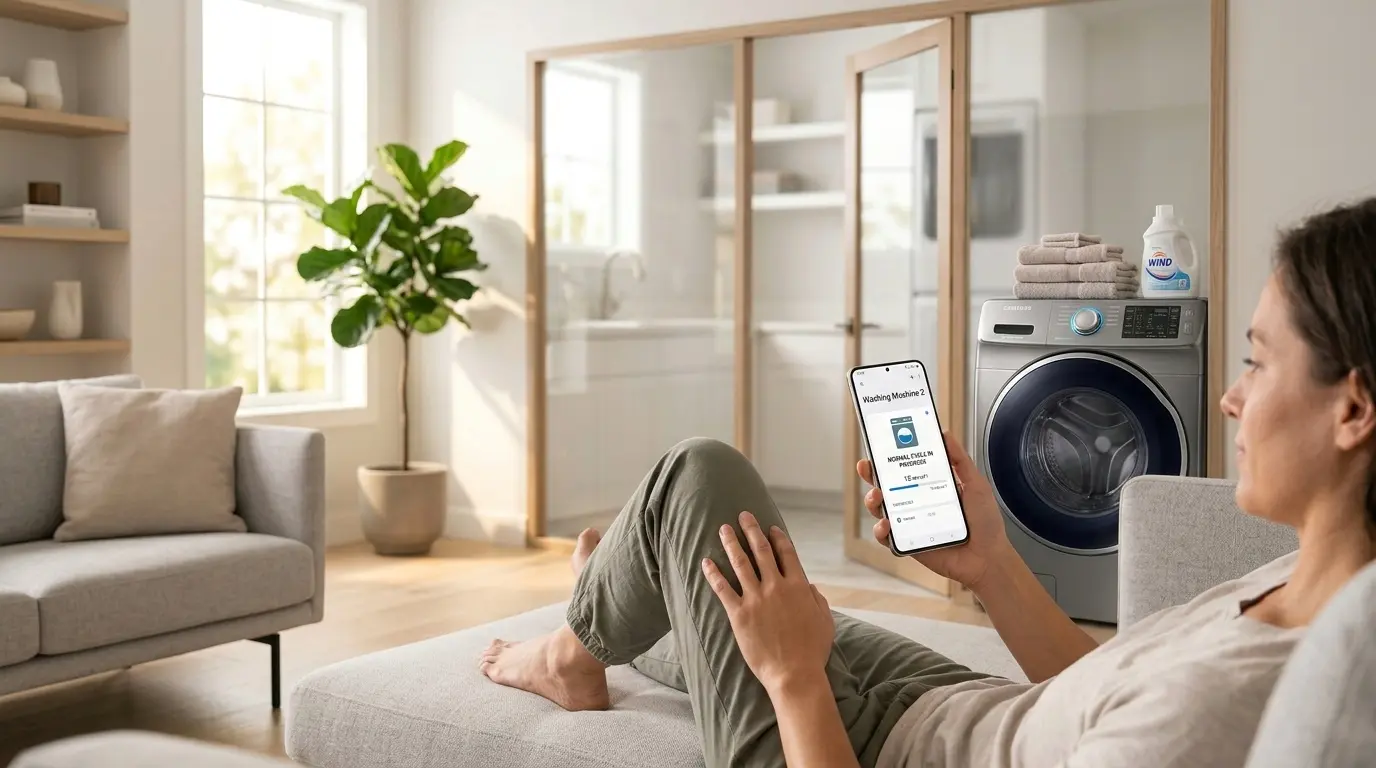
Imagine starting a load of laundry from your couch, getting a notification when it is done, and never walking into the laundry room to find a forgotten wet load sitting for hours. That is exactly what the Samsung washing machine SmartThings app makes possible, and setting it up is much simpler than most people expect.
Whether you just bought a new Samsung washer or you have had one sitting in your laundry room for a while and never connected it, this guide walks you through the entire setup process from scratch. We will also cover the best features, common connection problems, and exactly how to get the most out of controlling your laundry from your phone.
Table of Contents
What Is Samsung SmartThings and How Does It Work with Your Washer?
SmartThings is Samsung’s smart home platform. It connects your Samsung appliances, TVs, and other smart devices into one app so you can monitor and control them remotely. When you connect your Samsung washing machine to SmartThings integration, your washer essentially gets a brain extension; it talks to your phone over your home Wi-Fi network.
Here is what that connection actually lets you do:
- Start, pause, and stop wash cycles remotely from anywhere.
- Receive push notifications when a cycle finishes.
- Monitor how much time remains in a running cycle.
- Browse and select wash cycles directly from the app.
- Check the washer’s status even when you are not home.
- Set delay start timers so laundry finishes right when you need it.
- Get error alerts sent straight to your phone.
It is genuinely one of the most practical smart home features available for a household appliance because laundry is something everyone deals with every single day.
What You Need, Before You Start
Before diving into the setup steps, make sure you have everything in place. A missing piece here is the most common reason the Samsung washing machine SmartThings connection fails on the first try.
- A compatible Samsung washer. Most Samsung washing machines made after 2017 support SmartThings. Look for the Wi-Fi symbol on your washer’s control panel or check your model number on Samsung’s website.
- A 2.4GHz Wi-Fi network. Samsung washers connect on 2.4 GHz only, not 5 GHz. If your router broadcasts both bands with the same network name, you may need to temporarily separate them or connect your phone to the 2.4GHz band during setup.
- A Samsung account. Free to create an account at account.samsung.com if you do not already have one.
- The SmartThings app. Available free on both iOS (App Store) and Android (Google Play Store).
- Your phone and washer are on the same Wi-Fi network during the initial setup process.
Step-by-Step: How to Set Up a Samsung Washing Machine SmartThings
Step 1: Download and Open the SmartThings App
- Search for SmartThings in the App Store or Google Play and install it.
- Open the app and sign in with your Samsung account. If you do not have one, tap Create Account; it takes about two minutes.
- Allow the app permissions it requests; location, notifications, and local network access are all needed for full functionality.
Step 2: Put Your Samsung Washer in Wi-Fi Setup Mode
- Make sure your washer is powered on but not running a cycle.
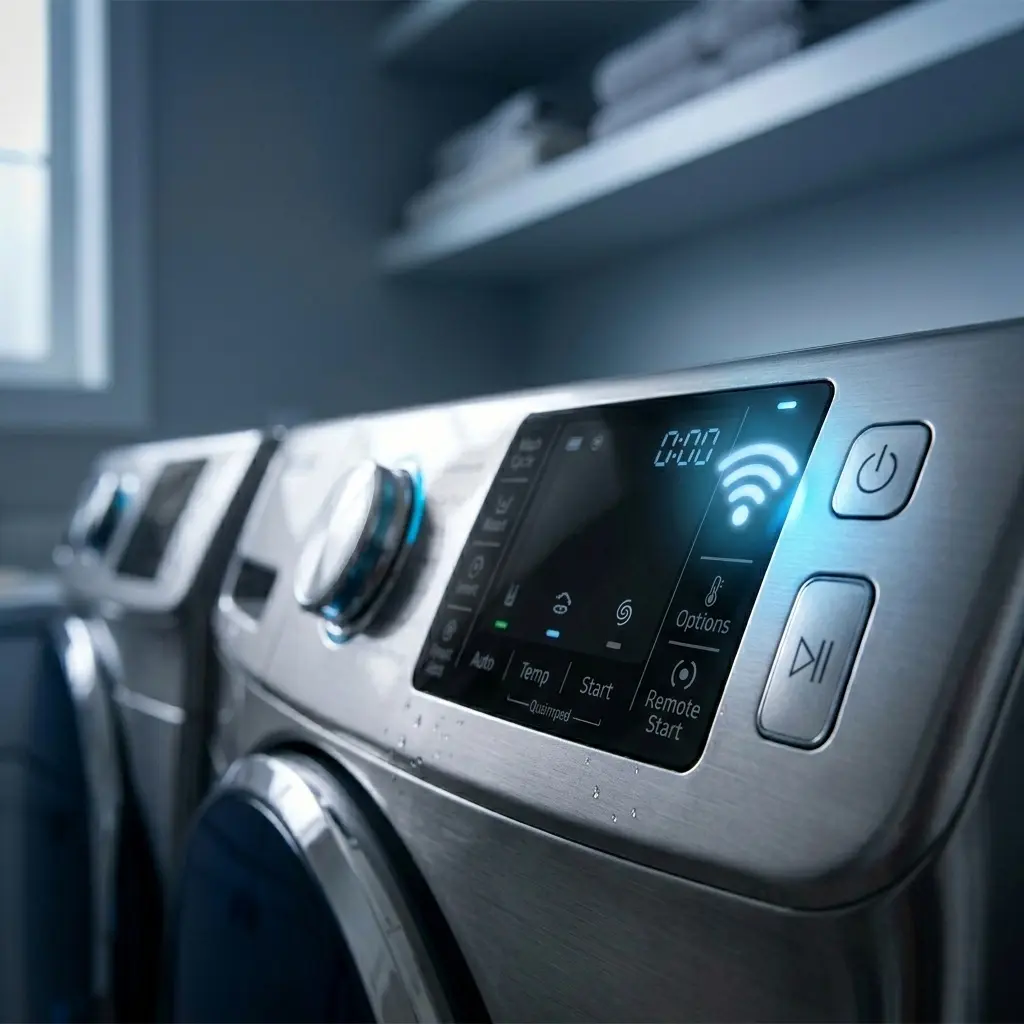
- Press and hold the Smart Control button (or SmartThings button, depending on your model) for 3 seconds until the Wi-Fi indicator light starts blinking.
- On some models, you activate setup mode by pressing Temp and Spin simultaneously for 3 seconds; check your user manual if the Smart Control button is not visible.
- The blinking Wi-Fi light means the washer is broadcasting its own temporary network and is ready to be discovered.
Read this if you face this: The washing machine’s WiFi is not connecting. 7 Easy Fixes That Actually Work! Save your time.
Step 3: Add Your Washer to the SmartThings App
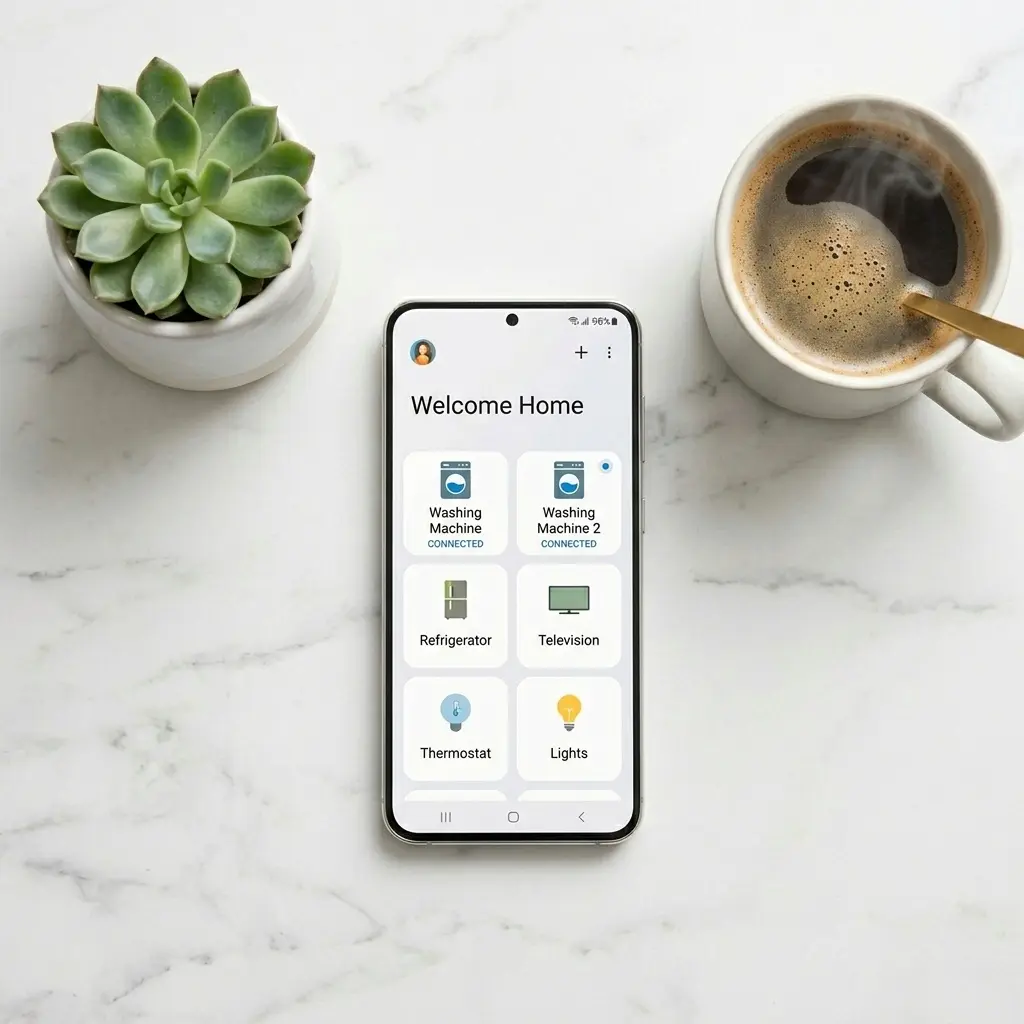
- In the SmartThings app, tap the + (plus) icon in the top right corner.
- Select Add Device.
- Tap Samsung from the brand list, then select Washing Machine.
- The app will scan for nearby devices. When your washer appears, tap it.
- Follow the on-screen prompts; the app will walk you through connecting the washer to your home Wi-Fi network.
- Enter your Wi-Fi password when prompted.
- Wait for the connection to complete. The Wi-Fi light on your washer will stop blinking and stay solid when it is successfully connected.
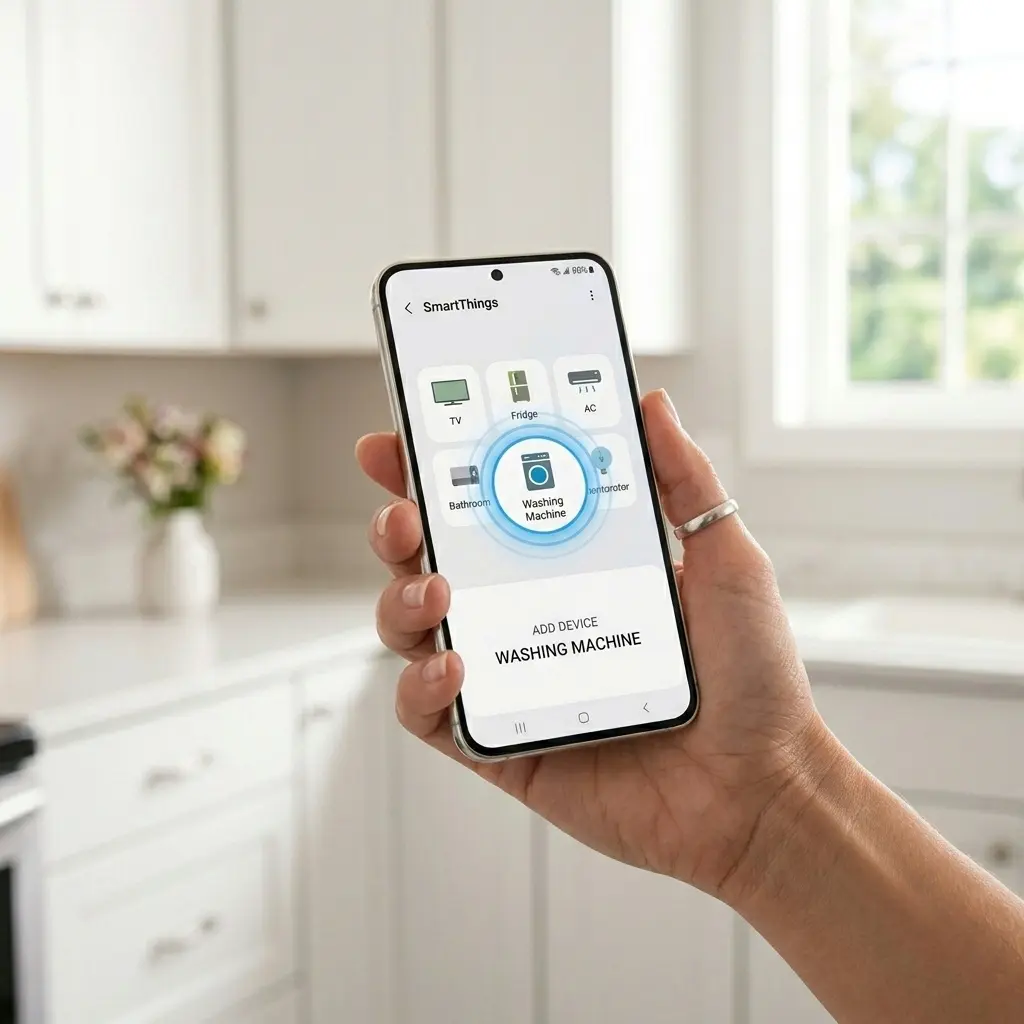
Step 4: Name Your Device and Assign It to a Room
- Once connected, give your washer a name; something like “Laundry Room Washer” makes it easy to find later.
- Assign it to a room in your home layout within the app.
- Tap Done; your Samsung washing machine SmartThings setup is complete.
The whole process typically takes under 10 minutes from the ROM download to being done.
Best Features to Use Once Your Samsung Washing Machine SmartThings Is Connected
The setup is just the beginning. Here are the features worth exploring right away:
1. Remote Start
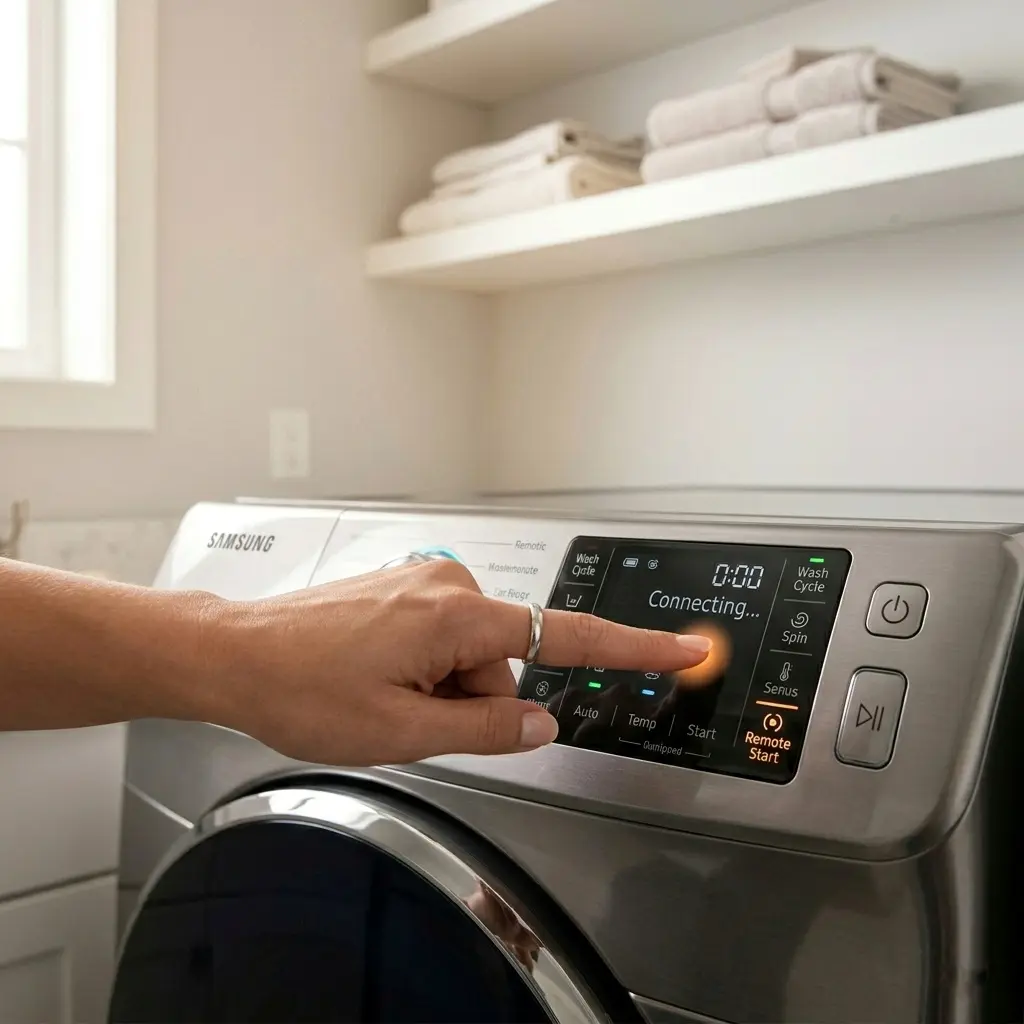
You can start a wash cycle from anywhere using the app, but there is one important thing to know. For Remote Start to work, you need to physically press the Remote Start button on the washer itself before leaving. This is a safety feature Samsung built in so the machine cannot be started unexpectedly. Once that button is pressed, you can trigger the cycle from your phone at any time.
2. Cycle End Notifications
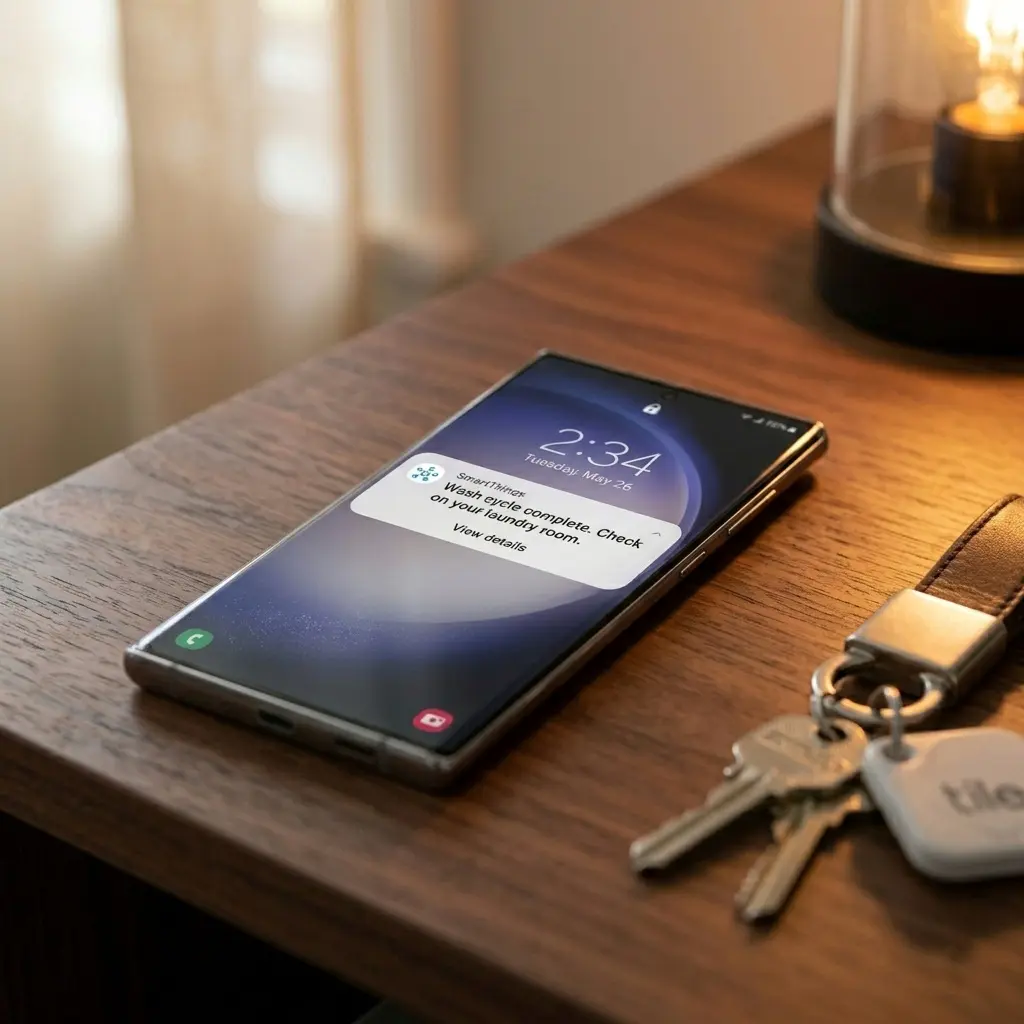
This alone is worth the setup. Enable push notifications in the SmartThings app, and you will get an alert the moment your wash cycle finishes. No more forgotten wet laundry sitting in the drum for hours, a habit that causes musty smells and rewashing.
3. Cycle Monitor
Tap your washer in the Samsung washing machine SmartThings app, and you will see a real-time countdown showing exactly how many minutes remain. Useful when you are timing laundry around a busy schedule.
4. Delay End / Delay Start
Schedule your wash to finish at a specific time. Load the washer at night, set a delay end time for 7 AM, and wake up to fresh, clean laundry ready to move to the dryer.
5. SmartThings Automations
This is where the Samsung washing machine SmartThings platform gets really powerful. You can create automations like the following:
- When the wash cycle ends → send a notification to a family member’s phone.
- When I arrive home → check the washer status automatically.
- When the washer detects an error → alert me immediately.
6. Energy Monitoring
Some Samsung washer models connected through SmartThings can show energy consumption data, helping you identify whether running full loads versus partial loads is actually making a difference in your electricity usage.
Common Samsung Washing Machine SmartThings Connection Problems and Fixes
Even with a straightforward setup, things sometimes go sideways. Here are the most common issues and how to solve them:
Problem 1: The App Cannot Find the Washer
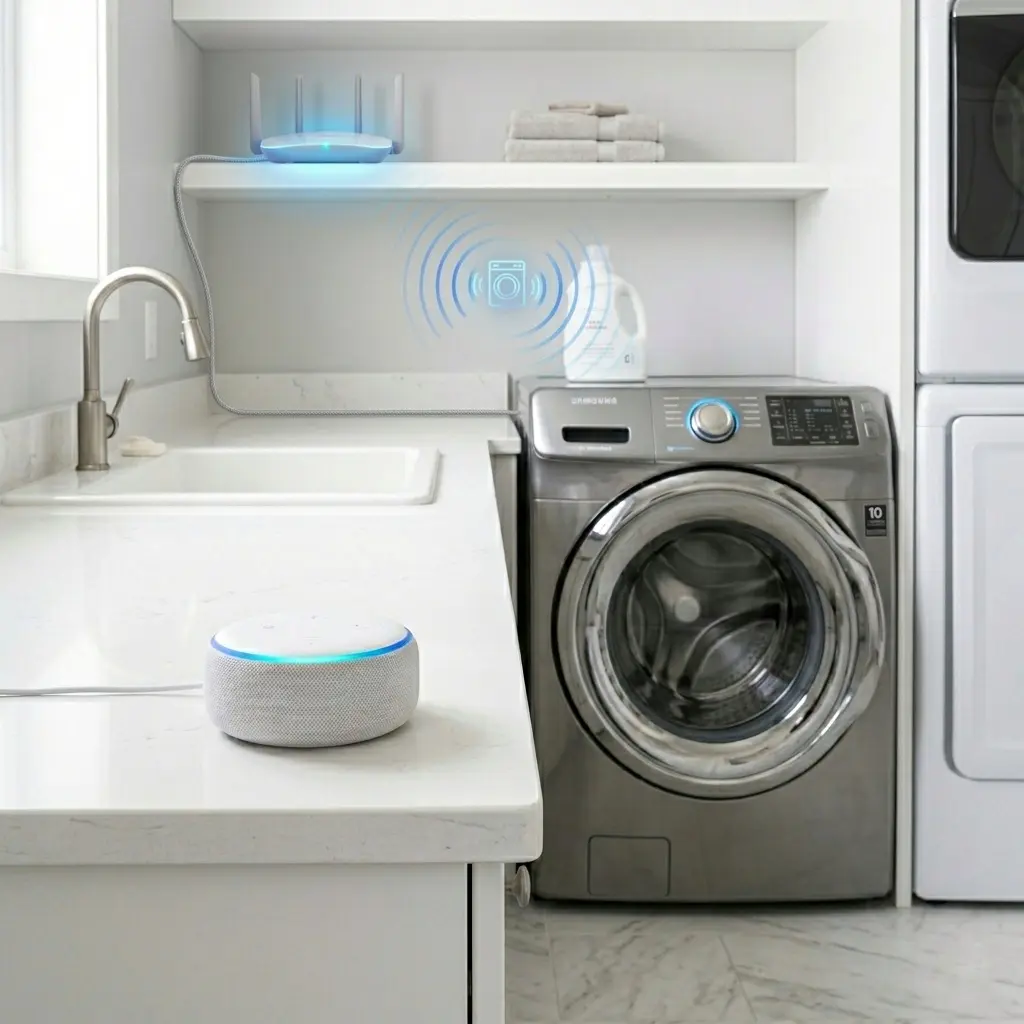
- Make sure your phone is connected to 2.4GHz Wi-Fi, not 5GHz.
- Confirm the washer’s Wi-Fi light is blinking; if not, put it back into setup mode.
- Restart both your phone and your router before trying again.
Problem 2: Washer Connects but Then Goes Offline
- The washer may be too far from your router. Wi-Fi signals weaken through walls; a Wi-Fi extender in or near the laundry room can fix this permanently.
- Check that your router’s firmware is up to date.
- Power cycle the washer by turning it off, waiting 30 seconds, and turning it back on.
Problem 3: Remote Start Is Grayed Out in the App
- You need to press the physical Remote Start button on the washer’s control panel first. This must be done each time before using remote start.
- Make sure a wash cycle is already selected on the machine before trying to start remotely.
Problem 4: Not Receiving Notifications
- Go to your phone’s Settings → Notifications → SmartThings and make sure notifications are allowed.
- Inside the SmartThings app, go to Menu → Notifications and confirm cycle alerts are turned on for your washer.
Problem 5: Wrong Wi-Fi Network During Setup
- If your router has separate 2.4GHz and 5GHz networks with different names, connect your phone to the 2.4GHz network specifically during setup. After setup is complete, you can reconnect your phone to whichever band you prefer.
How to Re-Add Your Washer After a Router or Wi-Fi Change
If you change your router, update your Wi-Fi password, or switch internet providers, your Samsung washing machine SmartThings connection will drop and need to be re-established. Here is the fastest way to do it:
- Open SmartThings → tap your washer → tap the three-dot menu → select Edit.
- Choose “Change Wi-Fi Network” and follow the prompts.
- Alternatively, delete the device and add it again, fresh, using the original setup steps above.
The reconnection process is identical to the initial setup and takes the same few minutes.
Is the Samsung SmartThings Washing Machine Feature Worth It?
Genuinely yes. The Samsung washing machine SmartThings integration is not a gimmick. The cycle-end notifications alone change how you manage laundry day. Combined with remote start, delay scheduling, and error alerts, it turns a mundane household chore into something you can manage entirely on your terms.
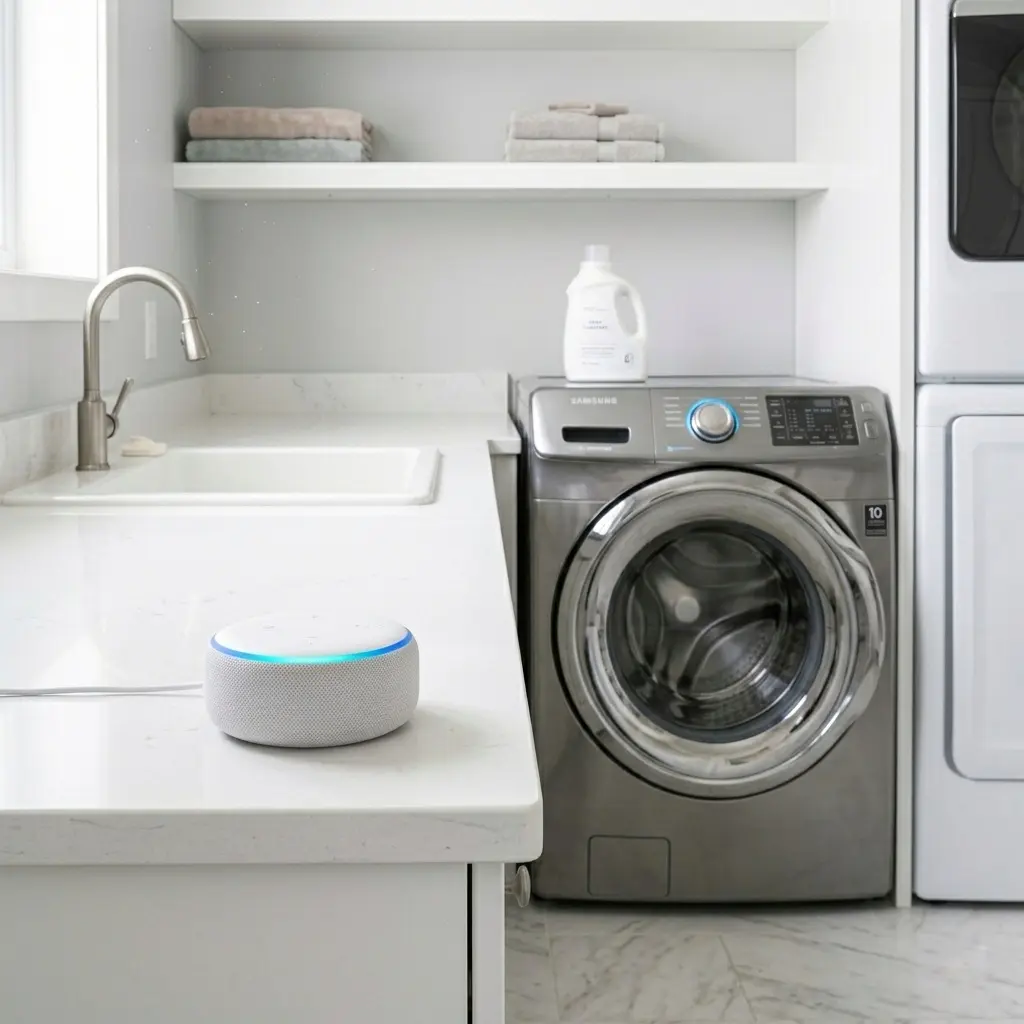
It is especially useful for:
- Busy households where multiple people share one washer.
- People who work from home and run laundry between tasks.
- Anyone who regularly forgets wet laundry in the machine.
- Families who want to monitor if kids actually started the laundry they were asked to do.
Frequently Asked Questions
Q: Which Samsung washing machines are compatible with SmartThings?
Most Samsung washing machines manufactured from 2017 onward with a Wi-Fi indicator on the control panel are compatible with Samsung washing machine SmartThings. The easiest way to confirm compatibility is to check your model number on Samsung’s SmartThings compatibility page at smartthings.com or look for the Wi-Fi or SmartThings logo on the machine itself.
Q: Do I need a Samsung phone to use SmartThings with my washer?
No. The SmartThings app works on any iOS or Android smartphone. You do not need a Samsung Galaxy phone; an iPhone or any Android device works perfectly fine for the full Samsung washing machine SmartThings experience.
Q: Can I control my Samsung washer from outside my home Wi-Fi network?
Yes. Once your washer is connected to SmartThings, you can monitor and control it from anywhere with an internet connection, not just when you are on your home Wi-Fi. This is one of the biggest advantages of the SmartThings platform.
Q: Why does my Samsung washer keep disconnecting from SmartThings?
The most common cause is a weak Wi-Fi signal in the laundry room. Washing machines are often placed far from the router, and the appliance’s metal body can interfere with the signal. A Wi-Fi extender or mesh network node placed near the laundry room usually solves this completely.
Q: Can multiple family members control the washer through SmartThings?
Yes. You can invite family members to your SmartThings home by going to Menu → Manage Home → Invite Member. Once accepted, they can see and control the washer from their own phones using their own Samsung accounts.
Q: Does SmartThings work with voice assistants like Alexa or Google Home?
Yes. Samsung SmartThings integrates with both Amazon Alexa and Google Home. Once linked, you can use voice commands to check your washer’s status or control basic functions. Say something like “Hey Google, is the washer done?” and get a real-time status update.
Q: What happens to my SmartThings connection during a power outage?
If the power goes out mid-cycle, the washer will lose its Wi-Fi connection temporarily. Once power is restored, the washer will automatically reconnect to your Wi-Fi network and reappear in the SmartThings app within a few minutes; no need to set it up again.
Final Thoughts
Setting up a Samsung washing machine with SmartThings takes less than ten minutes and delivers genuine daily convenience. From cycle notifications to remote start and smart automations, it is one of those features that, once you use them regularly, make going back to a non-connected washer feel oddly inconvenient.
Follow the steps in this guide and double-check your 2.4GHz Wi-Fi connection, and you will be controlling your laundry from your phone today. If you run into any connection issues, the troubleshooting section above covers every common scenario.
Smart laundry is not the future anymore; it is already sitting in your laundry room waiting to be connected.