
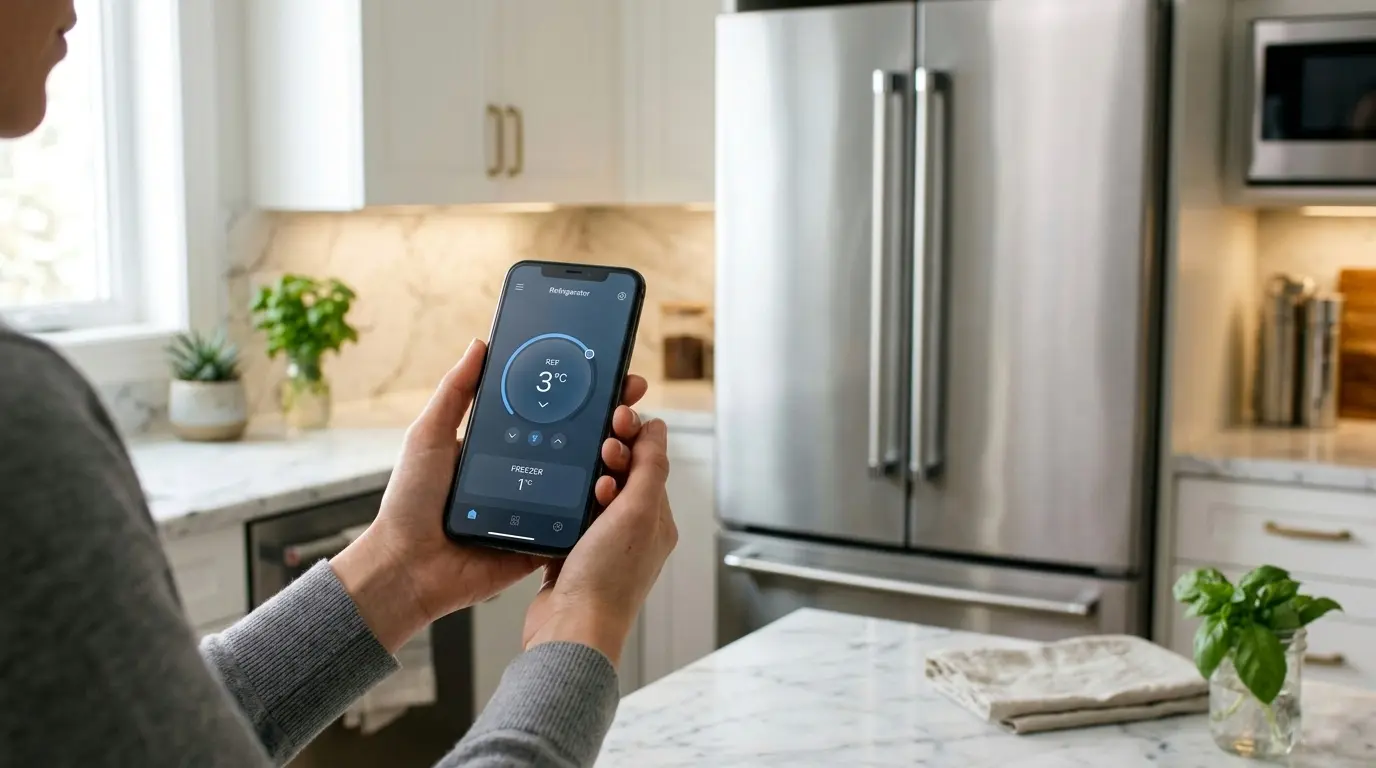
You just got a new LG refrigerator, or you realized your existing one has Wi-Fi and you have never set it up. Either way, the LG ThinQ app is sitting on the app store waiting for you, and once you connect it, your fridge goes from a regular appliance to something genuinely useful.
The LG ThinQ app lets you monitor and control your refrigerator from your phone, change temperatures, get door-open alerts, check energy usage, run diagnostics, and even get ahead of potential problems before they become expensive repairs. Depending on your model, the app can also show alerts and usage information.
The setup process is straightforward, but there are a few steps where people commonly get stuck, especially around Wi-Fi band settings and the initial pairing mode. This guide walks you through every step clearly, covers the best features to use once you are connected, and tells you exactly what to do when something does not work.
| As an Amazon Associate, I earn from qualifying purchases. TechElectronicLive.com may earn a small commission if you buy through links on this page, at no extra cost to you. |
Table of Contents
What Is the LG ThinQ App, and What Can It Actually Do?
The LG ThinQ app is LG’s central smart home platform available on iOS and Android. For refrigerators specifically, it turns your phone into a remote control and monitoring dashboard for your appliance, anywhere you have internet access.
The app was originally called SmartThinQ. It works with many LG appliances and can connect to voice assistants such as Google Home and Amazon Alexa on supported models. Check LG’s page for your model to see exactly what it supports.
For refrigerators, the app is more than just a novelty. It gives you real, useful control over an appliance that runs 24 hours a day, 365 days a year.
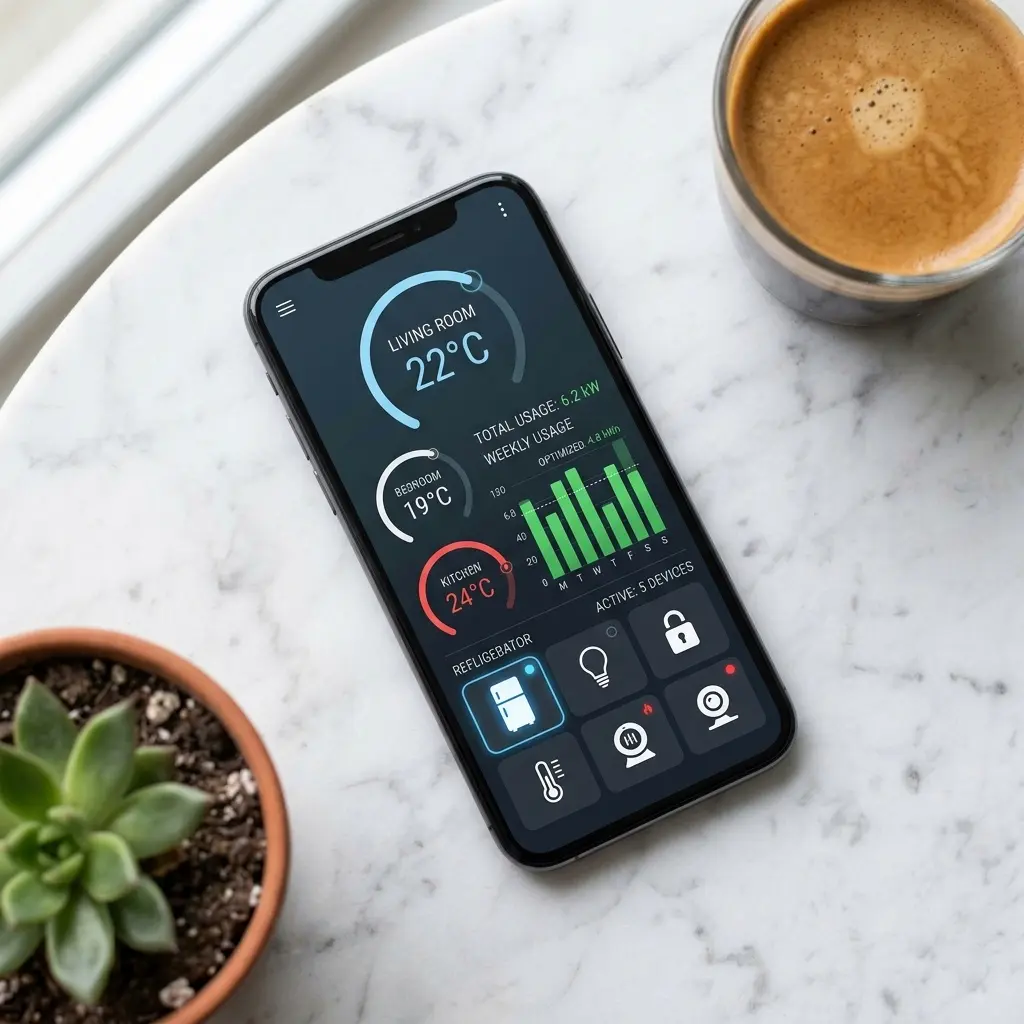
What You Can Do With ThinQ on Your Refrigerator
- Set and adjust freezer and refrigerator temperatures remotely
- Activate Express Freeze and Express Cool modes from your phone
- Receive real-time alerts if the fridge or freezer door is left open
- Get filter replacement reminders on supported models
- Monitor energy consumption daily, weekly, and monthly
- Run Smart Diagnosis, a remote diagnostic scan that identifies faults
- Enable Sabbath Mode, Lock Control, or vacation settings remotely
- See usage information and alerts on supported models
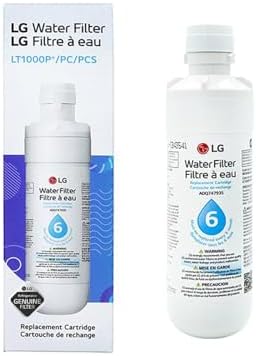
- LG refrigerator water filters provide high quality drinking water by removing contaminants like pesticides, chemicals, a…
- Provide cleaner, fresher, and better tasting water and ice for your family.
- Only genuine LG refrigerator filters guarantee proper fit from the moment you install it; 3rd party filters can cause da…
LG ThinQ App, Key Specifications, and Platform Facts (2026)
What to Know About the App
The LG ThinQ app is free and is available for iPhone and Android. Features, supported voice assistants, and Wi-Fi bands vary by refrigerator model and app version, so check LG’s support page for your model before you start. Most LG refrigerators connect to a 2.4 GHz Wi-Fi network.
Compatible LG Refrigerator Models: Is Yours on the List?
Before downloading the app, confirm your refrigerator actually has Wi-Fi built in. Not every LG fridge is ThinQ-compatible; budget and entry-level models often skip the Wi-Fi module entirely.
The easiest way to check: look for the ThinQ logo (a red square with ThinQ text) on the front of your refrigerator, usually near the display panel or on the door handle badge. You can also check your model number on LG’s official compatibility page at lg.com/us/thinq.

- Extra-Spacious Interior — A massive 30 cu. ft. capacity gives you room to store bulk groceries, large platters, and ever…
- See Inside Without Opening — The InstaView glass panel lets you check contents with a quick knock, minimizing temperatur…
- Flexible Cooling Zones — Instantly transform compartments from refrigerator to freezer using five customizable temperatu…
ThinQ-Compatible LG Refrigerator Series, 2024 to 2026
Which LG Refrigerators Work With ThinQ?
Not every LG refrigerator has Wi-Fi. Models that list ThinQ in their specs, such as the LG LRMVS3006S InstaView French-door model, can connect to the app. To check your refrigerator, look for the ThinQ or Wi-Fi marking on the panel, search your exact model number on LG’s website, or check the model’s spec page. Available features differ by model.
| ⚠️ NOTE: ThinQ Basic models support remote temperature control and smart diagnosis but do not support ThinQ AI features like predictive maintenance or energy insights. Check LG’s official app listing for the complete 2026 compatibility list. |
Step-by-Step Setup: Connect Your LG Refrigerator to the ThinQ App
Before You Start, Checklist
- Your LG refrigerator is plugged in and powered on
- Your home Wi-Fi router is broadcasting a 2.4 GHz network (check your router settings)
- Your phone and refrigerator are within 10 feet of your router during initial setup
- You have your Wi-Fi password ready
- The LG ThinQ app is downloaded and ready to install
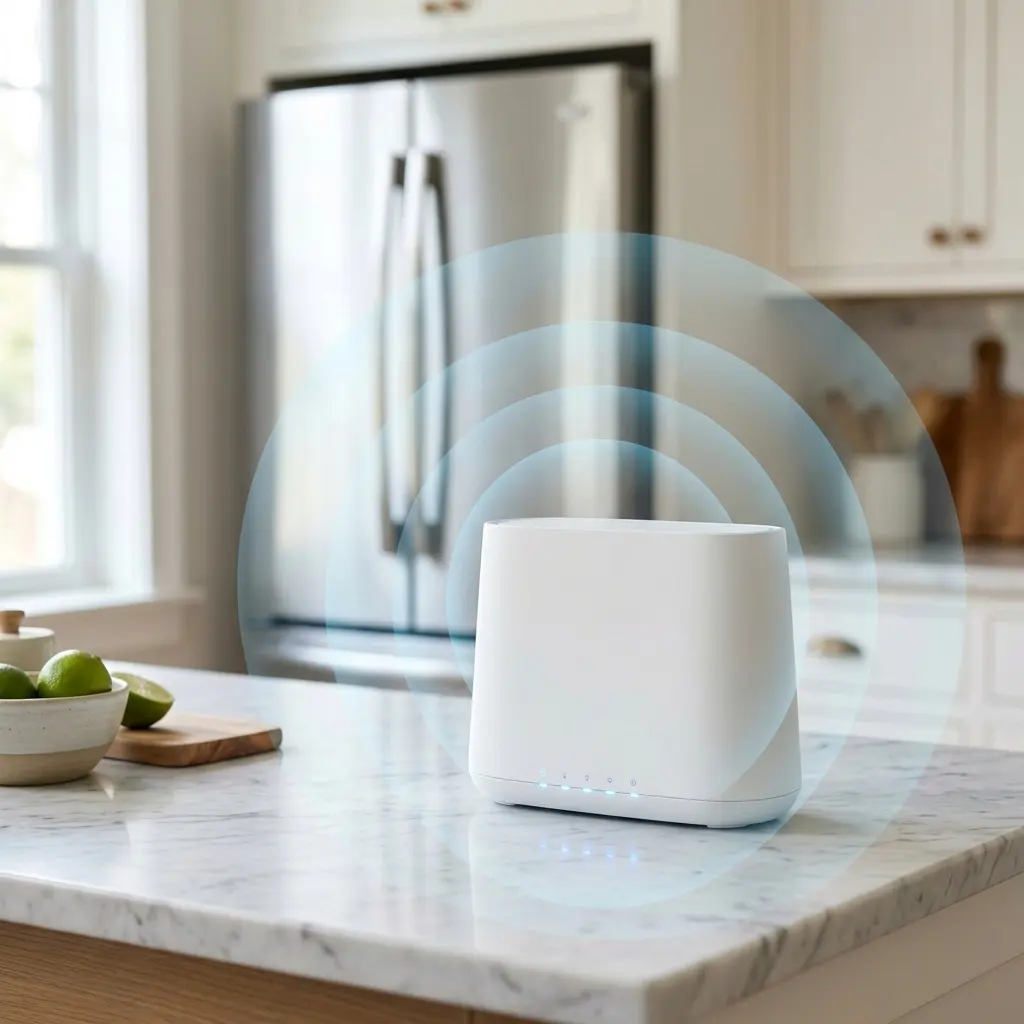
| 💡 PRO TIP: Most LG refrigerators only connect to 2.4 GHz Wi-Fi, not 5 GHz. If your router broadcasts a combined network (e.g., HomeNet for both bands), you may need to temporarily split them in your router settings and connect to the 2.4 GHz band specifically during setup. |
Step 1: Download and Create Your LG ThinQ Account
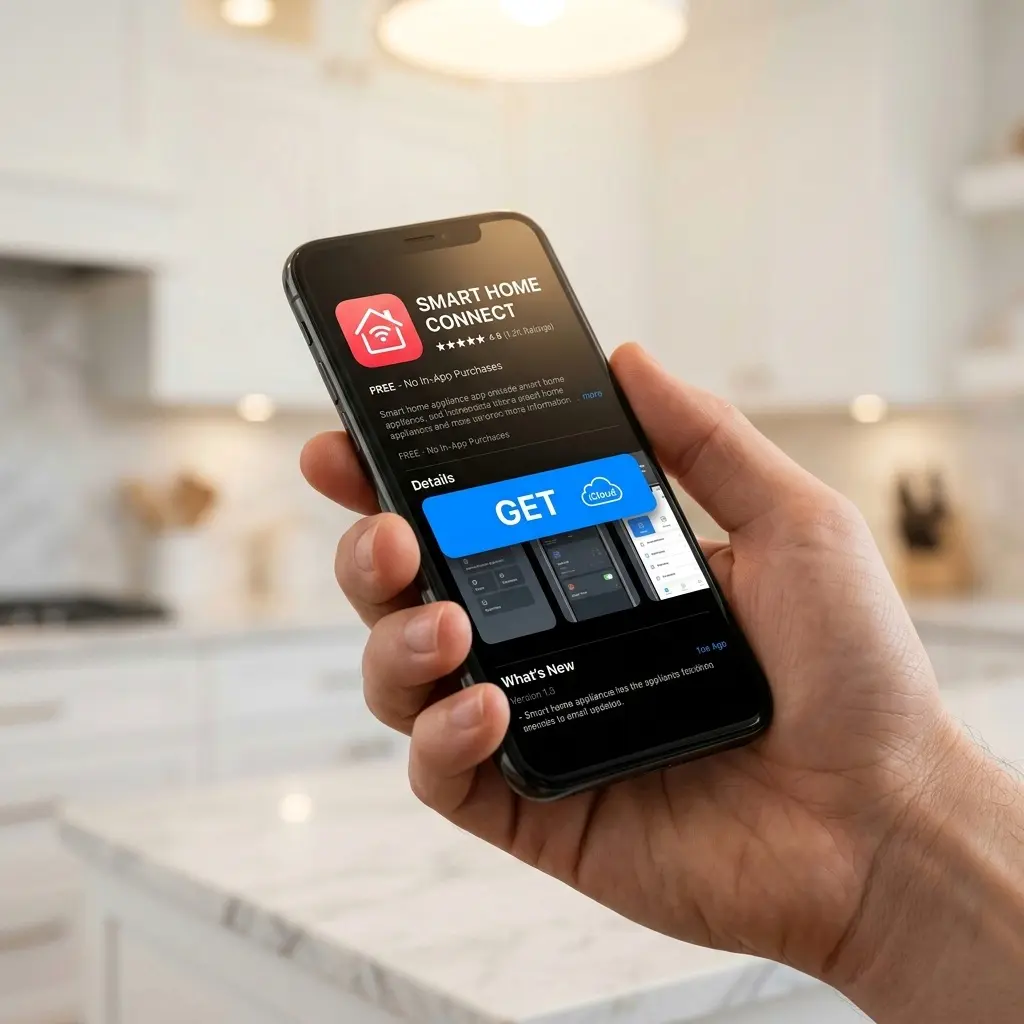
- Open the App Store (iOS) or Google Play Store (Android) and search for LG ThinQ.
- Download and install the app. It is free with no subscription required.
- Open the app and tap Create Account. Enter your email address Create a password and choose your region.
- Verify your email address by clicking the link LG sends. Return to the app and sign in.
Step 2: Add Your Refrigerator to the App
- On the ThinQ home screen, tap the + icon in the top right corner.
- Select Add Device, then choose Refrigerator from the appliance category list.
- The app will display a list of connection methods. Select Connect via Wi-Fi (Home Network).
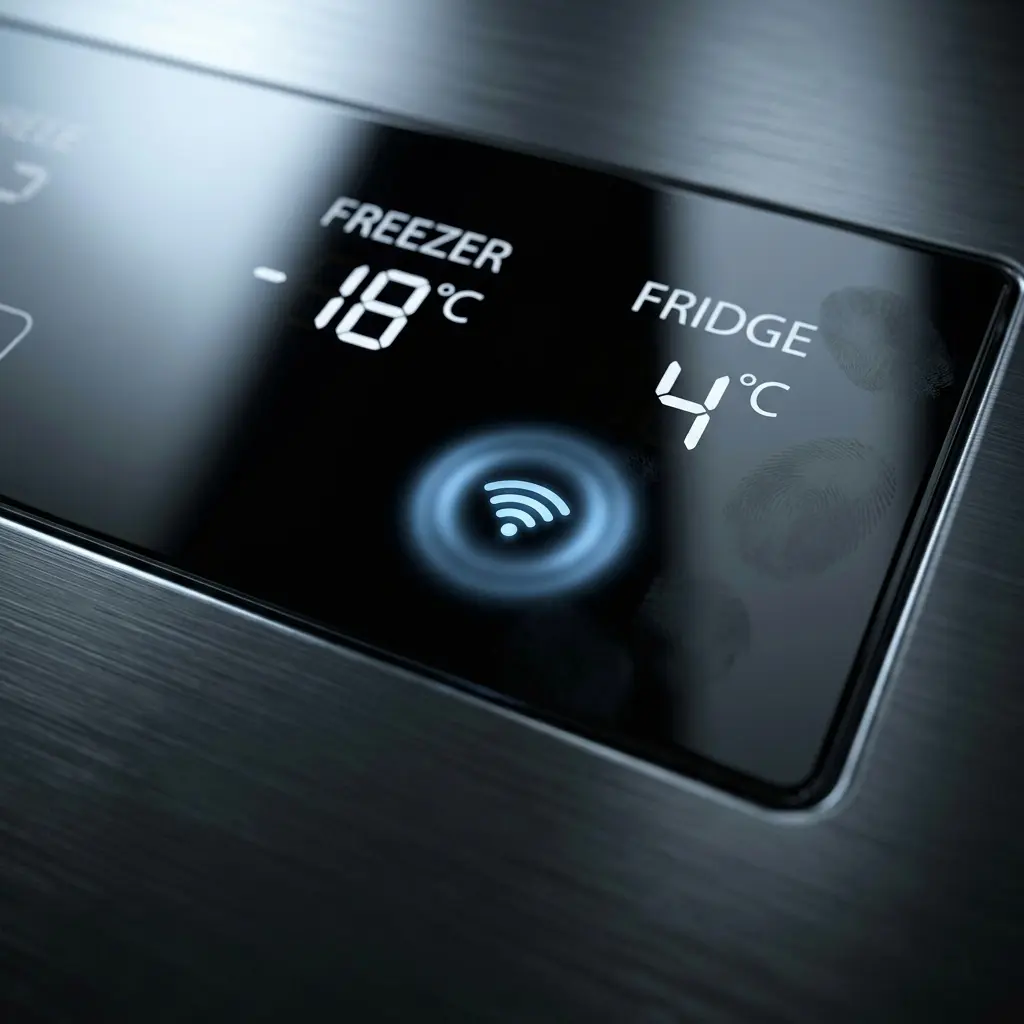
- Follow the on-screen prompt: open your refrigerator’s settings menu on the display panel and navigate to Wi-Fi or network settings. Select Wi-Fi Setup or ThinQ Setup (wording varies by model).
- Some models have a Wi-Fi or ThinQ button on the control panel. If yours does, hold it as your manual describes (often a few seconds) until the Wi-Fi indicator blinks.
- Back in the app, tap Next. The app will scan for your refrigerator’s temporary network.
Step 3: Connect to Your Home Wi-Fi
- The app will ask you to select your home Wi-Fi network from a list. Choose your 2.4 GHz network.
- Enter your Wi-Fi password. Double-check it; incorrect passwords are the most common setup failure point.
- Tap Connect. The app will send the Wi-Fi credentials to your refrigerator. This can take a minute or two.
- When the refrigerator successfully connects, the Wi-Fi indicator on the fridge display panel will stop blinking and show a solid Wi-Fi icon. The app will display a green confirmation screen.
- Assign a name to your refrigerator in the app (e.g., Kitchen Fridge) and tap Done.
| ⚠️ WARNING: Do not close the ThinQ app or lock your phone screen during the pairing process. Some Android phones suspend background activity, which can interrupt the handshake and cause a failed pairing. Keep the app in the foreground until you see the confirmation screen. |
Step 4: Configure Voice Assistants (Optional but Recommended)
- In the ThinQ app, go to Settings (gear icon) → Connected Services.
- Select your preferred voice assistant: Google Home, Amazon Alexa, or Apple HomeKit.
- For Google Home: tap Link with Google and sign in to your Google account. Your LG fridge will appear as a device in the Google Home app within 60 seconds.
- For Alexa: tap Link with Alexa, sign in to your Amazon account, and enable the LG ThinQ skill. Say Alexa, discover devices and your fridge will appear.
- For Apple Home: only some models support it. If your app shows an Apple Home or HomeKit option, follow the app’s on-screen steps for your model.
Best ThinQ Features to Use After Setup
Smart Diagnosis, Your Technician in Your Pocket
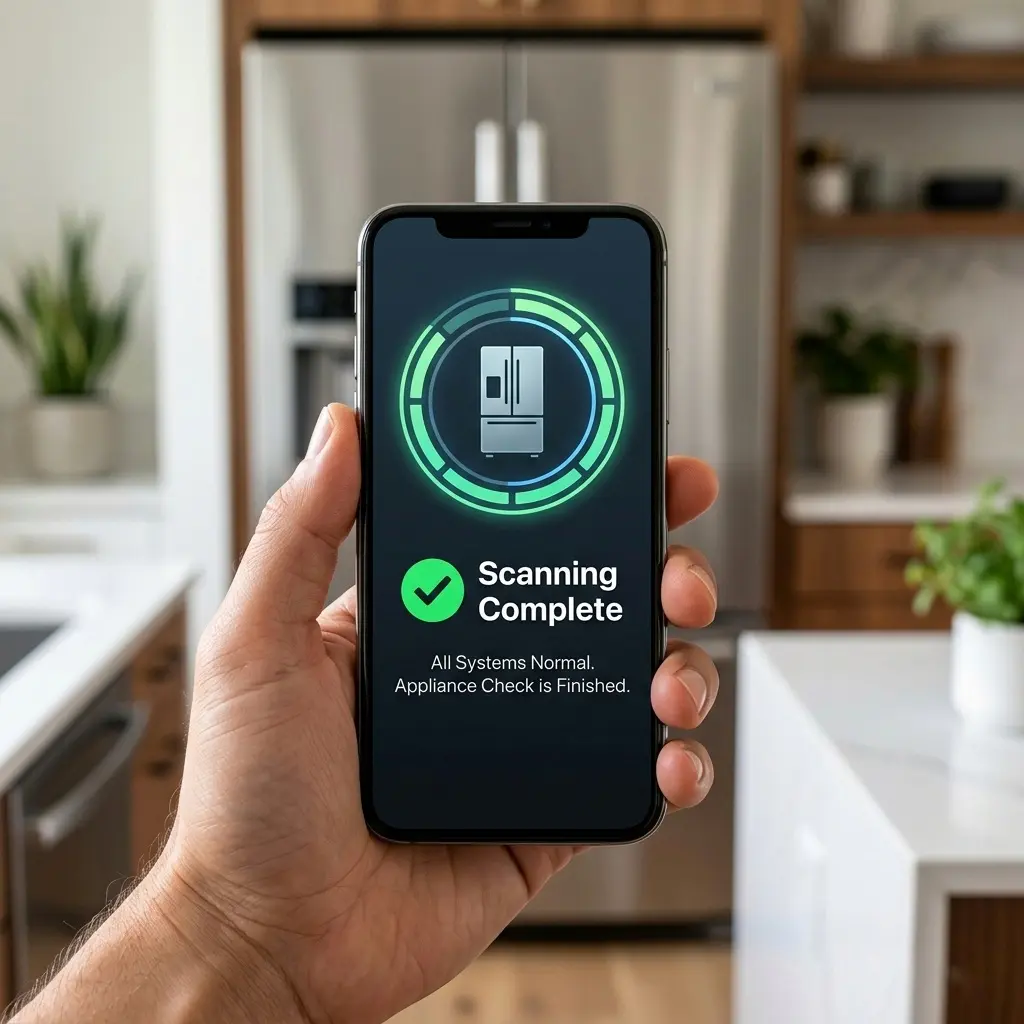
This is genuinely one of the most underused features in the app. When something seems off with your fridge, such as unusual noises, temperature inconsistencies, or error codes on the display, open ThinQ and look for the Smart Diagnosis option for your model. Smart Diagnosis can give you information about a possible problem and suggest what to do next. It may not catch every fault, and a technician may still be needed.
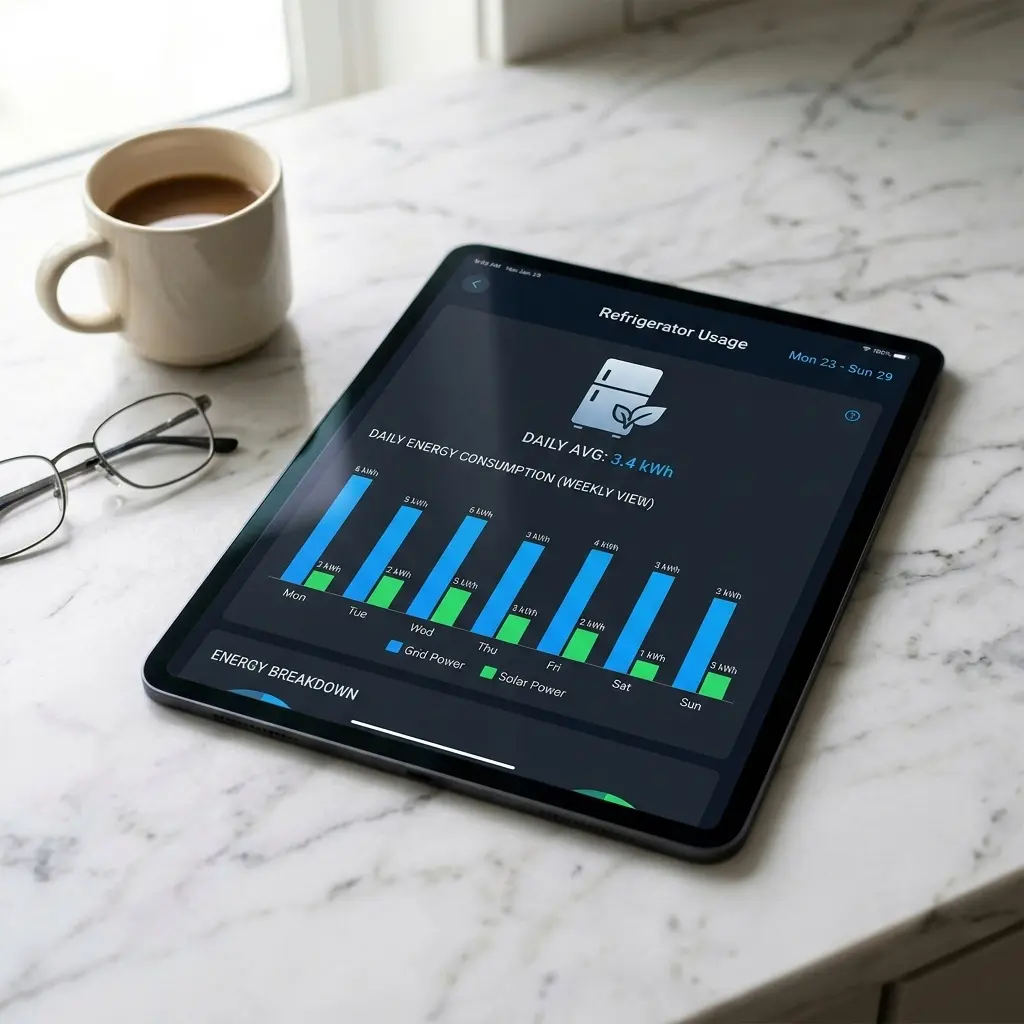
Energy Monitoring, See Where Your Money Is Going
LG ThinQ tracks your refrigerator’s energy consumption in real time and displays it in daily, weekly, and monthly views. On supported models, ThinQ can show how much energy your refrigerator uses. If the numbers rise noticeably, check that the doors are closing, the seals are clean and the temperature settings are sensible. Energy use varies by model, so check the EnergyGuide label for what is normal for yours.
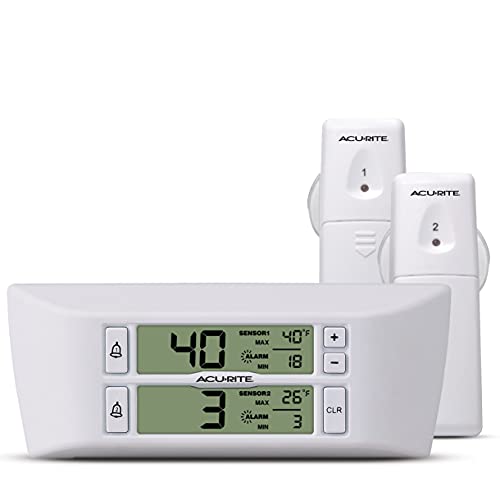
- Digital Temperature Sensor Thermometers: Includes one refrigerator thermometer and one freezer thermometer that transmit…
- Easy-to-Read LCD Display: The wireless temperature monitor gauge comes with magnetic backing for simple fridge or freeze…
- Customizable Temperature Alarms: When a remote temperature sensor measures an out-of-range condition, you’ll be alerted …
Door Open Alerts: Prevent Spoilage Silently
Enable door-open alerts in ThinQ settings, and you can get a push notification if a door has been left open (the delay depends on the model and settings). This is genuinely useful if you have kids or if your fridge is in a garage where you might not hear the built-in alarm.
| 💡 PRO TIP: If your model lets you adjust the door-open alert time in the app, choose a short delay so you hear about an open door quickly. A door left slightly ajar can make the compressor work harder. |
👉 Read More: LG refrigerator not cooling: causes and fixes
SmartThinQ vs. ThinQ
If you set up your refrigerator years ago, you may remember the app as SmartThinQ. LG now calls it ThinQ. If your refrigerator was set up on an older version, update the app and check that it still shows your refrigerator. If it doesn’t, add the device again by following the setup steps above.
Common LG ThinQ Setup Problems and How to Fix Them
Problem 1: App Cannot Find the Refrigerator During Pairing
Cause: Often a 5 GHz / 2.4 GHz Wi-Fi band issue. The app is scanning for the fridge on 2.4 GHz, but your phone is connected to 5 GHz, or your router broadcasts a combined band that the fridge cannot read properly.
Fix: Log into your router admin panel (usually at 192.168.1.1 or 192.168.0.1). Find the wireless settings and separate the 2.4 GHz and 5 GHz networks into two distinct SSIDs, for example, HomeNet_2G and HomeNet_5G. Connect your phone to HomeNet_2G and retry the setup process.

- DUAL-BAND WIFI 6 ROUTER: Wi-Fi 6(802.11ax) technology achieves faster speeds, greater capacity and reduced network conge…
- AX1800: Enjoy smoother and more stable streaming, gaming, downloading with 1.8 Gbps total bandwidth (up to 1200 Mbps on …
- CONNECT MORE DEVICES: Wi-Fi 6 technology communicates more data to more devices simultaneously using revolutionary OFDMA…
Problem 2: Refrigerator Connects but Drops Off the App After a Few Hours
Cause: A router setting, a changed password, or a weak signal.
Fix: Restart your router, check that the Wi-Fi name and password haven’t changed, and re-add the refrigerator in the app if needed. If you are comfortable with router settings, some people reserve a fixed IP address for the refrigerator in the router, but this is optional.
Problem 3: ThinQ App Shows Offline Even Though Fridge Is Connected
Cause: LG’s cloud servers occasionally have regional outages. This is not a problem with your fridge or your network.
Fix: Check whether other devices work, and check LG’s support site or social channels for outage notices. If the servers are online, force-close the app and reopen it. If the problem persists, go to app Settings → Device → Reconnect Device and re-enter your Wi-Fi credentials.
Problem 4: Smart Diagnosis Says Unable to Complete Scan
Cause: The refrigerator’s Wi-Fi signal is weak due to distance from the router, or there is interference from other 2.4 GHz devices (microwaves, baby monitors, or cordless phones).
Fix: Move your router closer to the kitchen temporarily, or add a Wi-Fi extender. The Smart Diagnosis function requires a stable connection to complete the data handshake with LG’s diagnostic servers.
| ⚠️ WARNING: Never share your ThinQ account credentials with anyone outside your household. The app has full remote control over your refrigerator’s temperature settings. An unauthorized temperature change to the freezer could spoil food without any visible warning. |

- 𝐒𝐭𝐫𝐨𝐧𝐠𝐞𝐫 𝐖𝐢-𝐅𝐢 𝐢𝐧 𝐄𝐯𝐞𝐫𝐲 𝐂𝐨𝐫𝐧𝐞𝐫 – Enjoy extended coverage with strong performance powered by Adaptive Path Selection and …
- 𝐃𝐮𝐚𝐥-𝐁𝐚𝐧𝐝 𝐖𝐢𝐅𝐢 𝐄𝐱𝐭𝐞𝐧𝐝𝐞𝐫 𝐰𝐢𝐭𝐡 𝟏.𝟐 𝐆𝐛𝐩𝐬 𝐓𝐨𝐭𝐚𝐥 𝐁𝐚𝐧𝐝𝐰𝐢𝐝𝐭𝐡 – Extend your home network with full speeds of 867 Mbps (5 GHz) an…
- 𝐌𝐚𝐱𝐢𝐦𝐢𝐳𝐞𝐝 𝐂𝐨𝐯𝐞𝐫𝐚𝐠𝐞 𝐮𝐩 𝐭𝐨 𝟏𝟓𝟎𝟎 𝐒𝐪. 𝐅𝐭 – Two adjustable external antennas provide optimal Wi-Fi coverage and reliable conn…
Pro Tips from Appliance and Smart Home Experts
| 💡 TIP 1: Enable ThinQ AI notifications in the app settings even if you do not plan to use the feature actively. In 2026, Turn on notifications in the app so you hear about door alerts and other messages quickly. What the app can detect varies by model, so don’t rely on it alone to protect your food. |
| 💡 TIP 2: Use the ThinQ app’s Express Freeze mode the evening before a grocery run. If your model has Express Freeze, check your manual for when to use it. Some people turn it on before a big grocery trip, but follow your manual’s guidance on how long to leave it on. |
| 💡 TIP 3: If you have multiple LG appliances, set up ThinQ routines. For example, when the washing machine cycle ends, send a push notification to your phone. Or when you activate Away Mode on the app before a vacation, it automatically adjusts the fridge to energy-saving temperatures while keeping it cold enough for condiments and beverages. |
| 💡 TIP 4: LG releases firmware updates for ThinQ-connected refrigerators silently through the app. These updates sometimes fix known bugs, improve Wi-Fi stability, or add new features. Check for firmware updates manually every 3–4 months in the app: go to your fridge device → Settings → Software Update. |
| 💡 TIP 5: On InstaView models such as the LRMVS3006S, if the panel doesn’t light when you knock, check your manual and the display settings first before calling a technician. |
Pros and Cons of the LG ThinQ App for Refrigerators
| Pros | Cons |
| Free app, no subscription or fees | Requires 2.4 GHz Wi-Fi (most models); 5 GHz is limited to 2025–2026 fridges |
| Smart Diagnosis can help you decide whether you need a technician | Initial setup can be confusing with dual-band routers |
| Real-time energy monitoring | No local control; app requires internet connection |
| Door-open alerts prevent food spoilage | The app occasionally shows offline during LG server maintenance |
| Apple HomeKit, Google Home, and Alexa support | Android users on older OS versions may experience lag |
FAQ, LG ThinQ App Setup for Refrigerators
1. Is the LG ThinQ app free to use?
Yes, completely free. Download it from the App Store or Google Play at no cost, create an account with your email address, and there will be no subscription or monthly fee. The app has been free to download and use for core features. Features and terms can change, so check the app store listing and LG’s site for the current details.
2. My LG refrigerator does not have a ThinQ logo. Can I still use the app?
If your refrigerator does not have the ThinQ logo or any Wi-Fi indicator on the display panel, it almost certainly does not have the Wi-Fi hardware built in. Check your model number on LG’s compatibility checker at lg.com/us/thinq before assuming it is compatible. If you don’t see the logo or a Wi-Fi indicator, check your model number on LG’s website to be sure. I’m not aware of an official add-on that adds ThinQ to a refrigerator that doesn’t have it.
3. Why does my LG fridge only work on 2.4 GHz Wi-Fi and not 5 GHz?
The 2.4 GHz Wi-Fi chip is smaller, less power-hungry, and has significantly longer range through walls, which makes it ideal for appliances. Refrigerators do not transfer large amounts of data (they send small status updates and receive commands), so the slower 2.4 GHz bandwidth is more than sufficient. Some newer models may support other bands, so check your manual. For most models, plan on using a 2.4 GHz network.
4. Can I control my LG refrigerator with Google Home or Alexa through ThinQ?
On supported models, yes. After your refrigerator is connected, look in the ThinQ app’s connected services settings for Google Home or Amazon Alexa. The commands you can use depend on your model and the assistant, so check LG’s page for the list. Only some models support Apple Home.
5. What is LG Smart Diagnosis, and how accurate is it?
Smart Diagnosis is LG’s remote fault analysis feature built into the ThinQ app. When you run it, the app communicates with LG’s diagnostic servers, which analyze your refrigerator’s real-time operating data against thousands of known fault signatures. Smart Diagnosis can point you toward a possible cause, but it may not find every problem, and I could not find a published accuracy figure. For intermittent or multi-component faults, a follow-up technician visit is sometimes still needed.
6. Will the LG ThinQ app work if my internet goes down?
Partially. When your internet connection is down, the ThinQ app cannot reach LG’s servers, so remote control, Smart Diagnosis, and cloud-based alerts stop working. However, the refrigerator itself continues to operate normally using its last stored settings. Your refrigerator should keep running with its current settings. When your internet returns, the app should reconnect, though you may need to re-add the device if it doesn’t.
7. How do I add my LG refrigerator to Apple HomeKit through ThinQ?
Apple Home support is available only on some models. If your model supports it, you will see an Apple Home or HomeKit option in the ThinQ app, and the app will walk you through pairing. If you don’t see the option, your model likely doesn’t support it. Check LG’s page for your model.
Conclusion
Setting up the LG ThinQ app on your refrigerator takes about 10 minutes, and once it is done, you genuinely get something useful back. Smart Diagnosis can help you decide whether you need a service call. The energy monitoring shows you things about your fridge’s behavior you would never notice otherwise. And the alerts? They are the kind of thing you think you will never need until the day your freezer door was left ajar for three hours while you were at work.
If you hit a snag during setup, the 2.4 GHz router issue catches most people. Fix that first, and the rest of the process is smooth. Check out our related articles below for more on getting the most from your LG refrigerator in 2026.